---
title: Adding and Managing Lenders in Prolegis
description: Accurately setting up a lender is a critical step in your workflow. Because Prolegis uses this data to auto-populate Requests for Funds, Mortgages, and Final Reports, selecting the correct lender and branch ensures document accuracy and streamlined communication.
---
[Skip to content](https://kb.prolegis.ca/adding-and-managing-lenders-in-prolegis-#main-content)
[![Full Prolegis Logo.png\]](https://kb.prolegis.ca/hs-fs/hubfs/Full%20Prolegis%20Logo.png?width=200&height=88&name=Full%20Prolegis%20Logo.png)](https://simplicity.prolegis.ca/)
Open main navigation
Close main navigation
- [Home](https://kb.prolegis.ca/)
[Home](https://kb.prolegis.ca/?hsLang=en)
How can we help?
- There are no suggestions because the search field is empty.
1. [Prolegis Knowledge Base](https://kb.prolegis.ca/?hsLang=en)
2. [Real Estate Conveyancing](https://kb.prolegis.ca/real-estate-conveyancing?hsLang=en)
June 4, 2026
# Adding and Managing Lenders in Prolegis
## Accurately setting up a lender is a critical step in your workflow. Because Prolegis uses this data to auto-populate Requests for Funds, Mortgages, and Final Reports, selecting the correct lender and branch ensures document accuracy and streamlined communication.
### How to Add a Lender to a Matter
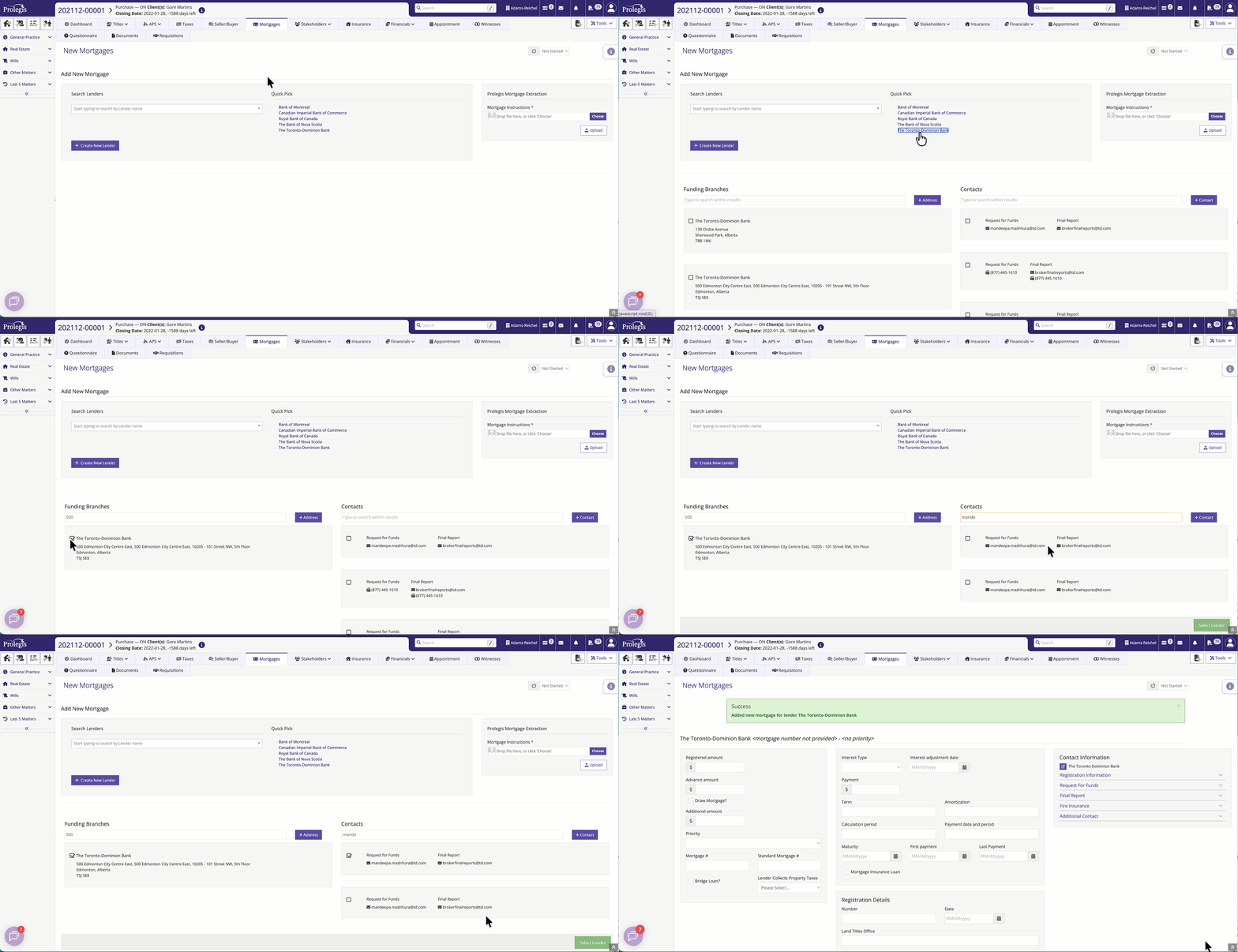
1. **Open the Add Mortgage Dialog:** Within your matter, navigate to **Mortgages** and select the option to add a new mortgage.
2. **Search for a Lender:** Use the **Search Lenders** field to find your institution. You can search by:
- Lender Name
- Registration Address
- Associated Contact Names
3. **Select from Quick Pick:** Frequently used lenders appear in the **Quick Pick** section for faster access.
4. **Choose the Funding Branch:** Once a lender is selected, a list of **Funding Branches** will appear. Select the checkbox for the specific branch handling the file.
5. **Assign Contacts:** In the **Contacts** panel, select the appropriate personnel for "Request for Funds" and "Final Report" to ensure automated emails and faxes are routed correctly.
---
### Handling Special Registration Cases
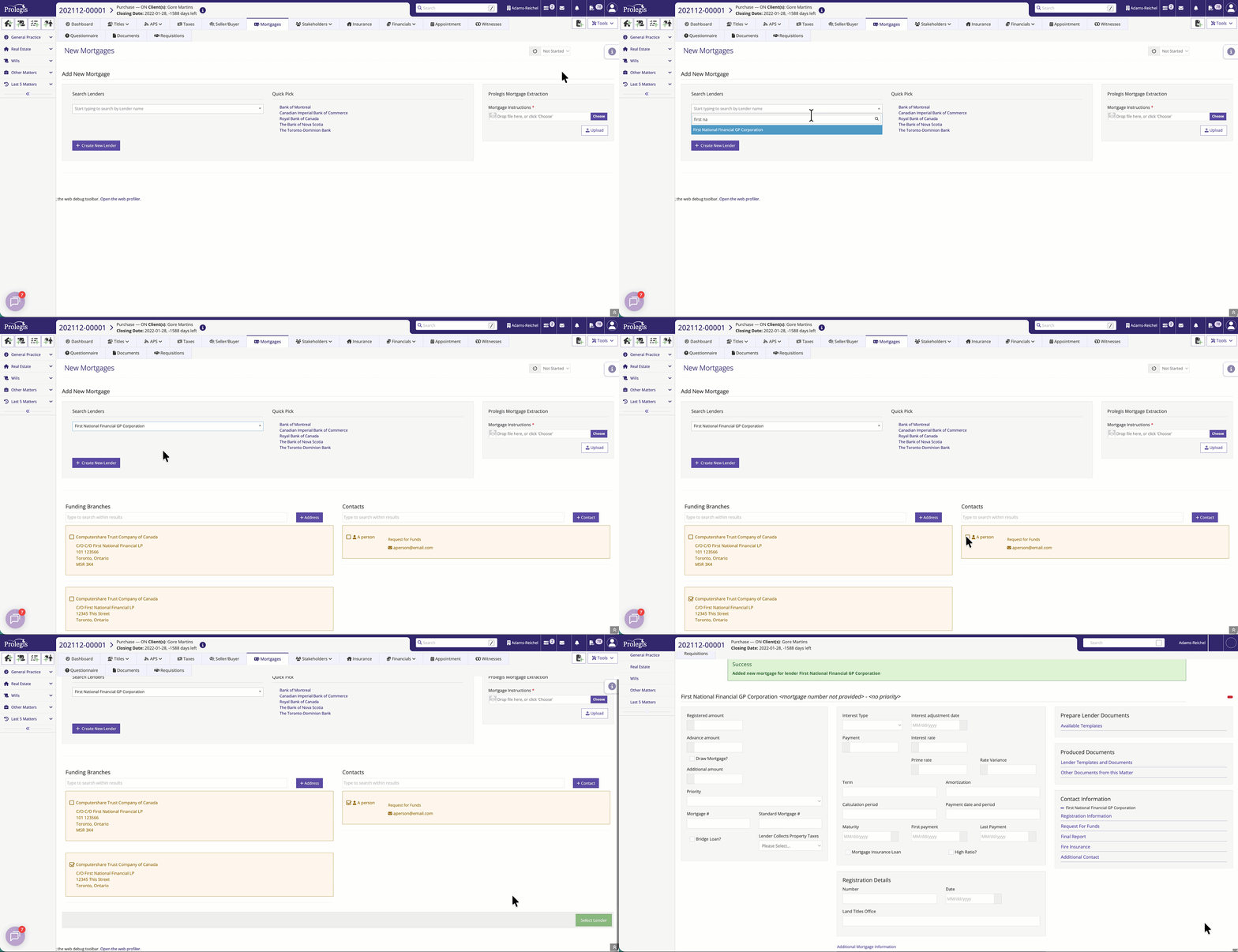
If the **Registered Party** on the face of the mortgage differs from the actual Lender (e.g., the lender is First National Financial LP, but the registered party is **Computershare Trust Company of Canada**):
- Select the primary **Lender** first.
- Under the branch/address settings, select or add the **Registered Name** (Computershare) to ensure the legal documents reflect the correct registration entity while maintaining the correct lending flow.
---
### Automation & Document Generation
Prolegis relies on the data entered in this section to automate your workload:
- **Document Population:** Lender names, branch addresses, and legal descriptions are pulled directly into your generated forms.
- **Communication:** The system uses the **Contact Information** (Email and Fax) to send out Requests for Funds and Final Reports automatically.
---
### Creating Private Lenders
If a lender does not exist in the pre-populated list, you can use the **+ Create New Lender** button.
> \[!WARNING\] **Private Lender Limitations** While you can create private lenders, please be aware that Prolegis’ advanced auto-document population may not fully apply to custom private entries. You may need to manually review and edit documents for these files.
---
### Managing Data
- **Adding New Info:** If a branch or contact is missing from a known lender, use the **+ Address** or **+ Contact** buttons to add them to the database for future use.
- **Finalizing:** Once all sections (Lender, Branch, and Contact) are selected, click **Select Lender** to link them to your matter.
- [Get started](https://kb.prolegis.ca/get-started?hsLang=en)
- [Real Estate Conveyancing](https://kb.prolegis.ca/real-estate-conveyancing?hsLang=en#main-content)
- [Alberta](https://kb.prolegis.ca/real-estate-conveyancing?hsLang=en#alberta)
- [Ontario](https://kb.prolegis.ca/real-estate-conveyancing?hsLang=en#ontario)
- [Estate Plan](https://kb.prolegis.ca/estate-plan?hsLang=en)
- [Get Organized](https://kb.prolegis.ca/get-organized?hsLang=en)
- [New!](https://kb.prolegis.ca/new?hsLang=en)
- [FAQs](https://kb.prolegis.ca/faqs?hsLang=en)
- [Integrations](https://kb.prolegis.ca/integrations?hsLang=en)
- [Settings](https://kb.prolegis.ca/settings?hsLang=en)
[](http://www.prolegis.ca)
www.prolegis.ca Help Center
Copyright © 2026, Prolegis Solutions Ltd.