![Full Prolegis Logo.png]](https://kb.prolegis.ca/hs-fs/hubfs/Full%20Prolegis%20Logo.png?width=200&height=88&name=Full%20Prolegis%20Logo.png)
The Progess Dashboard
Prolegis' checklists, or the Progress Dashboard, outlines the steps needed to complete a transaction. Prolegis has both built-in and customizable checklist capabilities. More than a simple checklist, Prolegis's Progress Dashboard steps
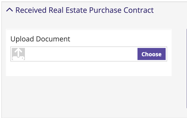
- can be linked to key documents
- upload
- creation

- upload
- automatically complete based on work completed in the file

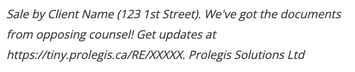
- can trigger automated notifications to clients, realtors and mortgage brokers
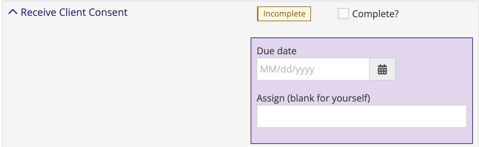
- can be assigned to other team members
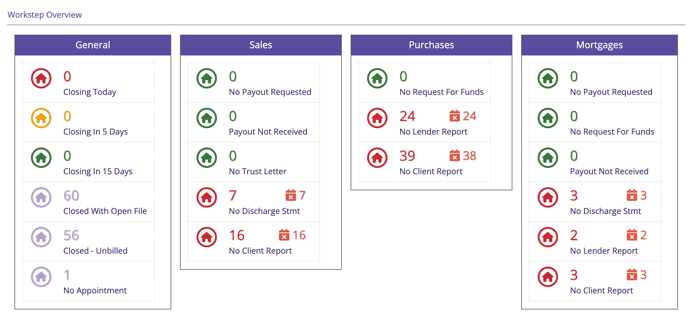
- can be used to track all like outstanding steps in the practice (for example, Payout Not Received)

- create the foundation for the Work Step Overview, a dashboard where the transactional health of the practice is displayed
Use Prolegis' built-in checklists
When you navigate to your matter, the default screen is the Progress Dashboard screen.
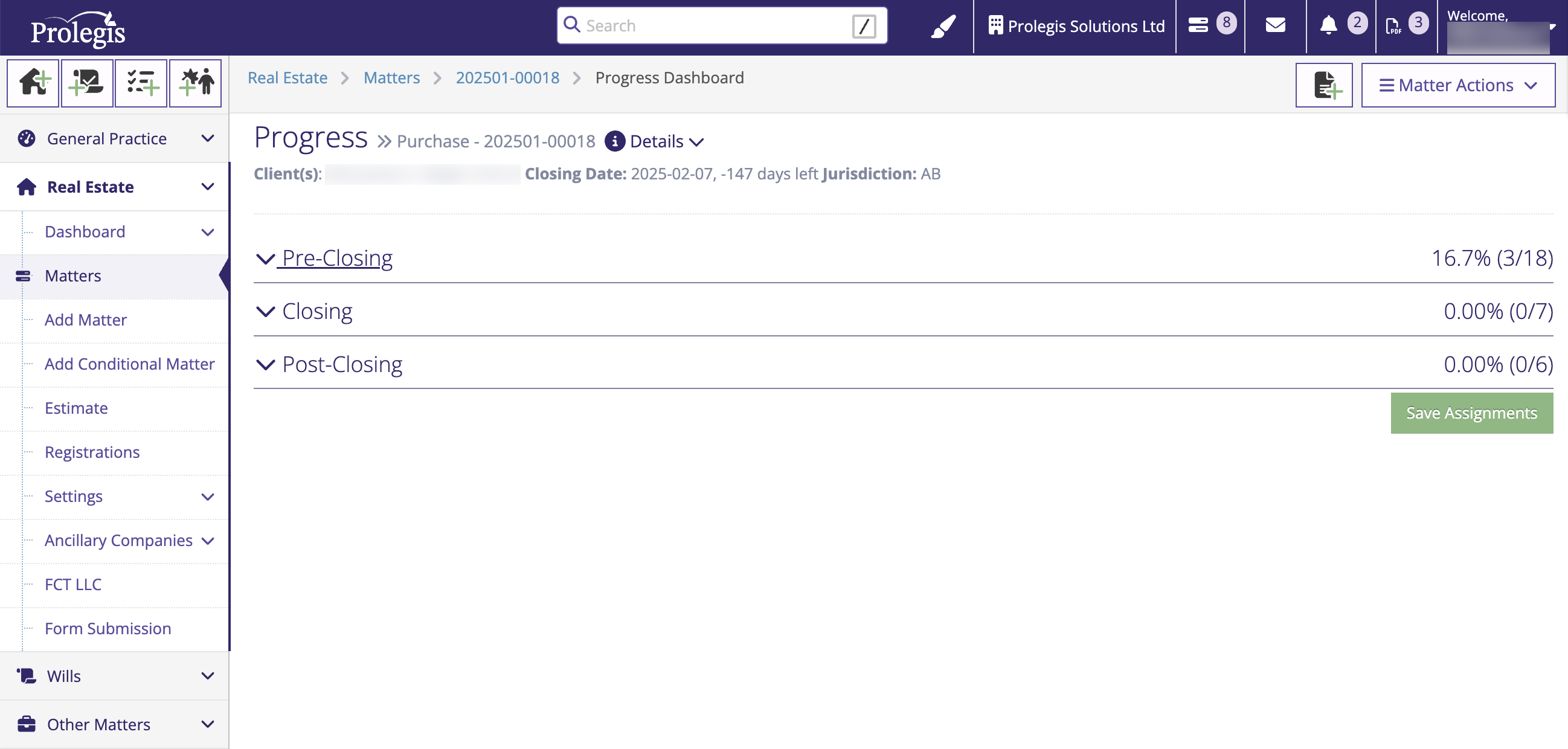
To open the Pre-Closing, Closing and Post-Closing menu items click the chevron to the left of the label.
-gif.gif?width=1110&height=454&name=2025-07-04_17-34-13%20(1)-gif.gif)
To upload a document to a step click the chevron and either use the upload dialogue or drag and drop the document
-gif.gif?width=1098&height=432&name=2025-07-04_17-37-12%20(1)-gif.gif)
To create a document click the "Create" button
-gif.gif?width=1114&height=594&name=2025-07-04_17-40-24%20(1)-gif.gif)
To mark a step complete or trigger an automated notification, click the box next to Complete?
-gif.gif?width=708&height=50&name=2025-07-04_17-43-19%20(1)-gif.gif)
Assign the task to complete the step to another team member. The task will show up in the list of tasks for the assigned team member.
-gif.gif?width=1096&height=350&name=2025-07-04_17-45-24%20(1)-gif.gif)