---
title: Exporting Transfers, Charges, and Discharges to Teraview
description: You can export the information from Prolegis in a format that can be uploaded directly into the Teraview eReg tool. The information entered into Prolegis is organised in a way that you create an eReg Transfer, Charge and Discharge export file
---
[Skip to content](https://kb.prolegis.ca/can-i-export-transfers-charges#main-content)
[![Full Prolegis Logo.png\]](https://kb.prolegis.ca/hs-fs/hubfs/Full%20Prolegis%20Logo.png?width=200&height=88&name=Full%20Prolegis%20Logo.png)](https://simplicity.prolegis.ca/)
Open main navigation
Close main navigation
- [Home](https://kb.prolegis.ca/)
[Home](https://kb.prolegis.ca/?hsLang=en)
How can we help?
- There are no suggestions because the search field is empty.
1. [Prolegis Knowledge Base](https://kb.prolegis.ca/?hsLang=en)
2. [Real Estate Conveyancing](https://kb.prolegis.ca/real-estate-conveyancing?hsLang=en)
March 10, 2026
# Exporting Transfers, Charges, and Discharges to Teraview
## Prolegis allows you to export registration data—including Transfers, Charges, and Discharges of Charges—into a format that can be directly uploaded to Teraview. This eliminates the need for manual data reentry and reduces the risk of transcription errors.
### Before You Begin
Ensure you have completed the following in your Prolegis matter:
- **Property Details:** The PIN and legal description are accurately recorded.
- **Party Information:** All names (Transferors/Transferees) match the legal identification provided.
- **Document Details:** For Charges or Discharges, ensure the principal amounts and registration numbers are correctly entered.
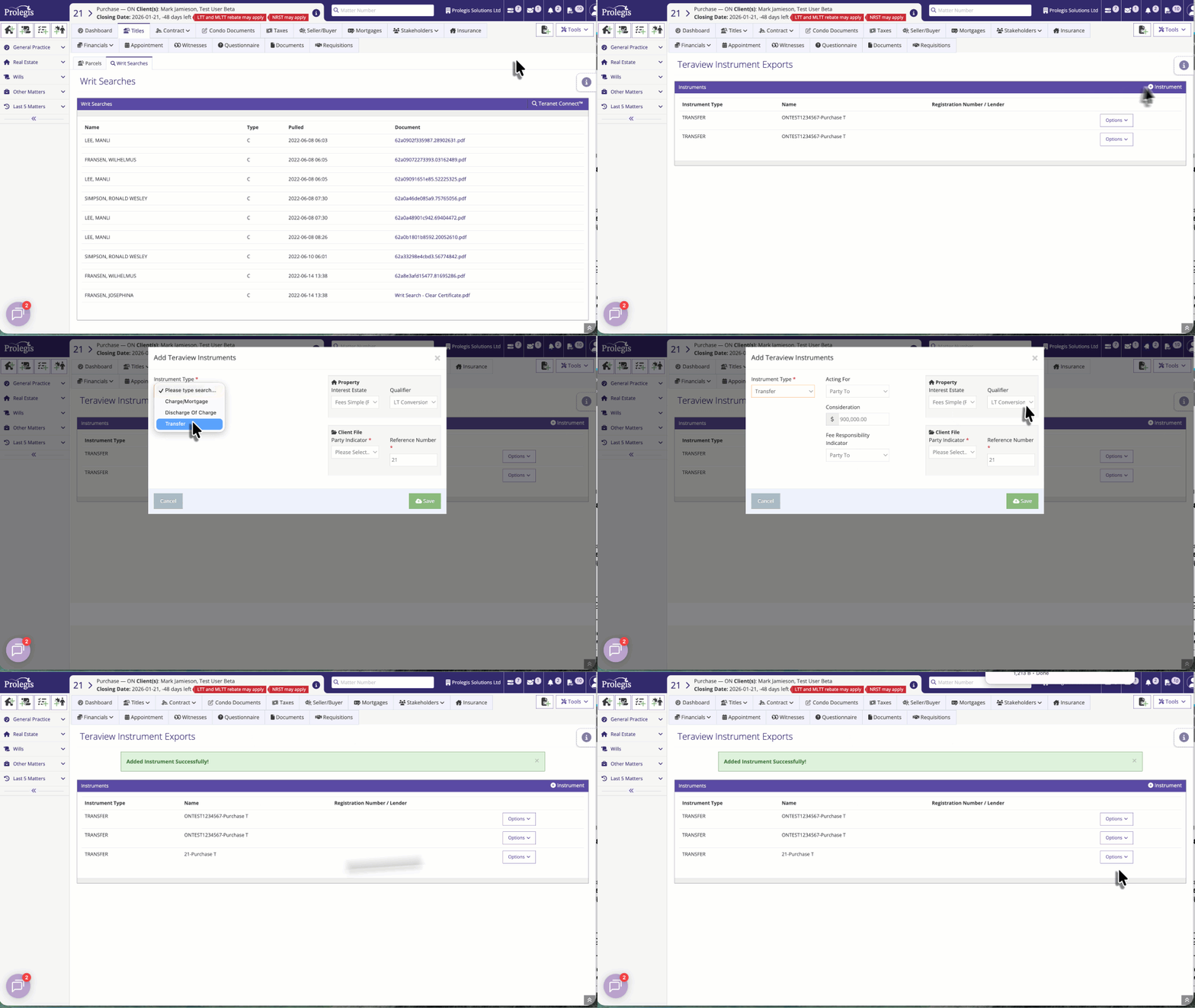
---
### Step-by-Step Instructions
#### 1. Navigate to the Tools menu
Click on Teraview Export
#### 2. Select Your Instruments
Locate the specific instrument(s) you wish to export (e.g., the Transfer or the Charge).
- Review the data one last time for accuracy.
- Click the **Export** button associated with the instrument.
#### 3. Download the Export File
Prolegis will generate a file specifically formatted for Teraview.
- Save this file to a secure location on your computer or your firm’s document management system.
- *Note: Do not attempt to open or edit this file manually, as changing the formatting may cause the Teraview upload to fail.*
#### 4. Upload to Teraview
- Log into your **Teraview** account.
- Navigate to the **Instruments** section of your draft.
- Select the **Import/Upload** option and choose the file you just downloaded from Prolegis.
- The data will automatically populate the corresponding fields in the Teraview instrument.
---
### Why Use Export?
- **Accuracy:** Pulls data directly from your matter files to ensure consistency between your Prolegis documents and Land Registry records.
- **Speed:** Replaces minutes of manual typing with a few clicks.
- **Integration:** Part of the seamless workflow between Prolegis and Ontario’s land registration system.
> **Tip:** If you encounter an error during the Teraview upload, return to Prolegis to ensure there are no special characters or missing mandatory fields (like postal codes or birth dates) in your contact profiles.
---
**Need help with a specific registration?** Click the **Chat icon** in the bottom right corner of your screen to speak with our support team.
- [Get started](https://kb.prolegis.ca/get-started?hsLang=en)
- [Real Estate Conveyancing](https://kb.prolegis.ca/real-estate-conveyancing?hsLang=en#main-content)
- [Alberta](https://kb.prolegis.ca/real-estate-conveyancing?hsLang=en#alberta)
- [Ontario](https://kb.prolegis.ca/real-estate-conveyancing?hsLang=en#ontario)
- [Estate Plan](https://kb.prolegis.ca/estate-plan?hsLang=en)
- [Get Organized](https://kb.prolegis.ca/get-organized?hsLang=en)
- [New!](https://kb.prolegis.ca/new?hsLang=en)
- [FAQs](https://kb.prolegis.ca/faqs?hsLang=en)
- [Integrations](https://kb.prolegis.ca/integrations?hsLang=en)
- [Settings](https://kb.prolegis.ca/settings?hsLang=en)
[](http://www.prolegis.ca)
www.prolegis.ca Help Center
Copyright © 2026, Prolegis Solutions Ltd.