![Full Prolegis Logo.png]](https://kb.prolegis.ca/hs-fs/hubfs/Full%20Prolegis%20Logo.png?width=200&height=88&name=Full%20Prolegis%20Logo.png)
1. Authorizing the Integration
To enable the flow of data, link your accounts via secure authorization.
-
Action: Navigate to https://simplicity.prolegis.ca/practice/settings/clio/

-
Step: Click Connect to Clio (Canada) and log in with your Clio credentials.
2. Client-to-Contact Synchronization
Prolegis manages Clients, which are synchronized as Contacts in Clio.
When you've authorized a connection between Prolegis and Clio, you can manually connect existing clients to Clio contacts, but this does not happen automatically. For the syncronization to work each Prolegis Client must be linked to a Clio Contact. At a minimum, this should be done for clients that you do repeat work for.
You can make these connections in one of two ways.
-
Manual Sync: From the Clio settings menu, clicking on Sync Clio Contacts will allow you to manually make these connections.
-
Automatic Sync: For all work moving forward, you will be given the opportunity to sync clients with Clio when they are added to a new matter. When creating a matter, if any client is not linked to Clio, it will be missing a Clio icon. Clicking the "Sync Clients/Contact" will pull up a window to allow you to either connect the client to an existing Clio Contact, or to create a new Contact. Any matter being created in Clio MUST have at least one client already linked to a Clio Contact.
3. Automatic Matter Creation
For all new files, Prolegis drives the creation of your firm’s records. When you open a new matter in Prolegis, a corresponding Matter is automatically created in Clio, pushing the following:
-
Clients: If your Prolegis are not already clients, you will be able to sync them with Clio Contacts.

-
Activities: Every billable action—including hourly time entries and expenses—is pushed to Clio for invoicing.
-
Documents: Every document generated, edited or deleted from Prolegis or uploaded file is mirrored in the Clio document tab and vice versa.
4. Handling Pre-Existing Matters
If you have a matter that was active in Prolegis before the Clio authorization, you have full control over how that data moves:
-
The Initial Link: Open the Matter Info Fly-out (the "i" icon) and select Sync with Clio to establish the connection.
-
Future Automation: Once synced, any documents created, edited, or deleted from that point forward will auto-sync to Clio.
-
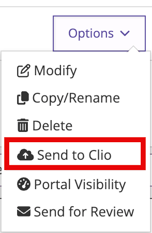
Historical Documents: Documents created prior to the sync are not moved automatically. You can manually push these to Clio from the Documents layout as needed.
5. Financial & Document Lifecycle
Once a matter is synced (whether new or pre-existing), the ongoing management of files and finances is seamless:
-
Documents: Real-time synchronization of all document actions (Create/Edit/Delete).
-
Activities: Any changes to hourly postings or expense entries in Prolegis are updated in Clio, ensuring your billing ledger remains accurate without manual intervention.