---
title: Conducting Writ Searches in Prolegis
description: Writ searches are a critical component of due diligence in real estate and legal transactions. Prolegis streamlines this process by integrating directly with Teranet Connect, allowing you to search for executions against buyers, sellers, or other individuals without leaving your matter.
---
[Skip to content](https://kb.prolegis.ca/conducting-writ-searches-in-prolegis#main-content)
[![Full Prolegis Logo.png\]](https://kb.prolegis.ca/hs-fs/hubfs/Full%20Prolegis%20Logo.png?width=200&height=88&name=Full%20Prolegis%20Logo.png)](https://simplicity.prolegis.ca/)
Open main navigation
Close main navigation
- [Home](https://kb.prolegis.ca/)
[Home](https://kb.prolegis.ca/?hsLang=en)
How can we help?
- There are no suggestions because the search field is empty.
1. [Prolegis Knowledge Base](https://kb.prolegis.ca/?hsLang=en)
2. [Real Estate Conveyancing](https://kb.prolegis.ca/real-estate-conveyancing?hsLang=en)
3. [Ontario](https://kb.prolegis.ca/real-estate-conveyancing?hsLang=en#ontario)
October 6, 2026
# Conducting Writ Searches in Prolegis
## Writ searches are a critical component of due diligence in real estate and legal transactions. Prolegis streamlines this process by integrating directly with Teranet Connect, allowing you to search for executions against buyers, sellers, or other individuals without leaving your matter.
### Prerequisites
Before you begin, ensure you have your **Teranet Connect credentials** handy. You will need to log in to the Teranet portal through Prolegis to authorize the search and incur the necessary disbursements.
---
### Step-by-Step Instructions
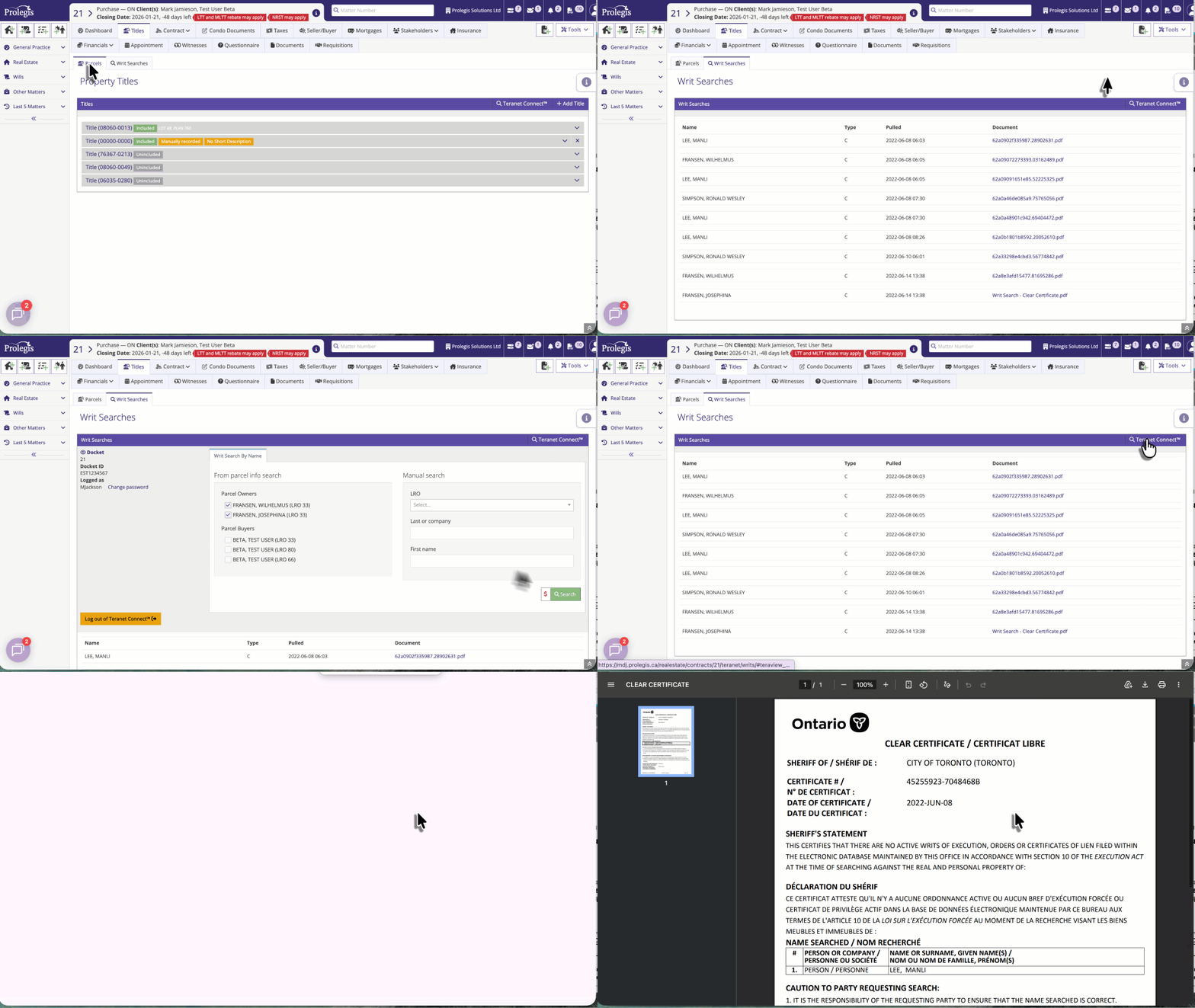
#### 1. Navigate to the Writs Section
Within your specific matter, use the main navigation menu to access the search area:
- Click on the **Titles** tab.
- Select **Writs** from the sub-menu.
#### 2. Log into Teranet Connect
If you have not yet authenticated your session for the day:
- Click the **Login to Teranet Connect** button.
- Enter your credentials in the pop-up window provided by Teranet.
- Once successfully logged in, the search interface will become active.
#### 3. Execute the Search
You can now search for buyers, sellers, or other relevant parties:
- **Select the Individual:** Choose the contact from your matter that you wish to search.
- **Verify Details:** Ensure the name is spelled correctly as per their legal identification.
- **Run Search:** Use the Teranet search tools integrated on the page to pull the Writ Statement.
#### 4. Review Results
Once the search is complete, the results will appear within the Writs tab. You can view clear certificates or details of any filed executions.
#### 5. Manually Add a Writ
If you have details of a writ obtained outside the integrated search, you can now manually add it directly to your matter:
- Navigate to the **Writs** section.
- Select **Manual Writs** and **Add**.
- Enter the relevant writ details (e.g., writ number, amount, etc.)
- **Specify the Individual:** You can now explicitly select which specific person (buyer, seller, or other party) the writ applies to.
---
### Integration with Document Production
One of the primary benefits of searching through Prolegis is that the data is automatically captured for your workflow:
- **Disbursements:** Search fees are automatically tracked.
- **Document Generation:** Information retrieved from the writ search (such as writ numbers or amounts) is available for use in your **Document Production** templates, such as Requisitions
- **Execution Affidavits:** You can produce the **Execution Affidavit** directly within Prolegis. The system will seamlessly pull the targeted writ data and the specified individual’s information into your templates.
**🌟 New Feature:** You no longer need to rely solely on the integrated search! You can now manually add writs to a file, link them to a specific person on the matter, and automatically produce their Execution Affidavit from the Document Production tab.
- [Get started](https://kb.prolegis.ca/get-started?hsLang=en)
- [Real Estate Conveyancing](https://kb.prolegis.ca/real-estate-conveyancing?hsLang=en#main-content)
- [Alberta](https://kb.prolegis.ca/real-estate-conveyancing?hsLang=en#alberta)
- [Ontario](https://kb.prolegis.ca/real-estate-conveyancing?hsLang=en#ontario)
- [Estate Plan](https://kb.prolegis.ca/estate-plan?hsLang=en)
- [Get Organized](https://kb.prolegis.ca/get-organized?hsLang=en)
- [New!](https://kb.prolegis.ca/new?hsLang=en)
- [FAQs](https://kb.prolegis.ca/faqs?hsLang=en)
- [Integrations](https://kb.prolegis.ca/integrations?hsLang=en)
- [Settings](https://kb.prolegis.ca/settings?hsLang=en)
[](http://www.prolegis.ca)
www.prolegis.ca Help Center
Copyright © 2026, Prolegis Solutions Ltd.