---
title: How do I complete a lender's PDF document in Prolegis?
description: We’ve a created a system that remembers what you do, allows you to use any of the information from the file with a click of the mouse and create templates as you complete a mortgage file.
---
[Skip to content](https://kb.prolegis.ca/explain-how-the-pdf-filler-works#main-content)
[![Full Prolegis Logo.png\]](https://kb.prolegis.ca/hs-fs/hubfs/Full%20Prolegis%20Logo.png?width=200&height=88&name=Full%20Prolegis%20Logo.png)](https://simplicity.prolegis.ca/)
Open main navigation
Close main navigation
- [Home](https://kb.prolegis.ca/)
[Home](https://kb.prolegis.ca/?hsLang=en)
How can we help?
- There are no suggestions because the search field is empty.
1. [Prolegis Knowledge Base](https://kb.prolegis.ca/?hsLang=en)
2. [Real Estate Conveyancing](https://kb.prolegis.ca/real-estate-conveyancing?hsLang=en)
January 19, 2026
# How do I complete a lender's PDF document in Prolegis?
## Prolegis has built in tools along with a lender document database connected to our PDF Filler. This means legal teams have Prolegis curated auto-populated documents available to them in addition to having their own ability to complete lender PDFs in Prolegis.
**Where do I start?**
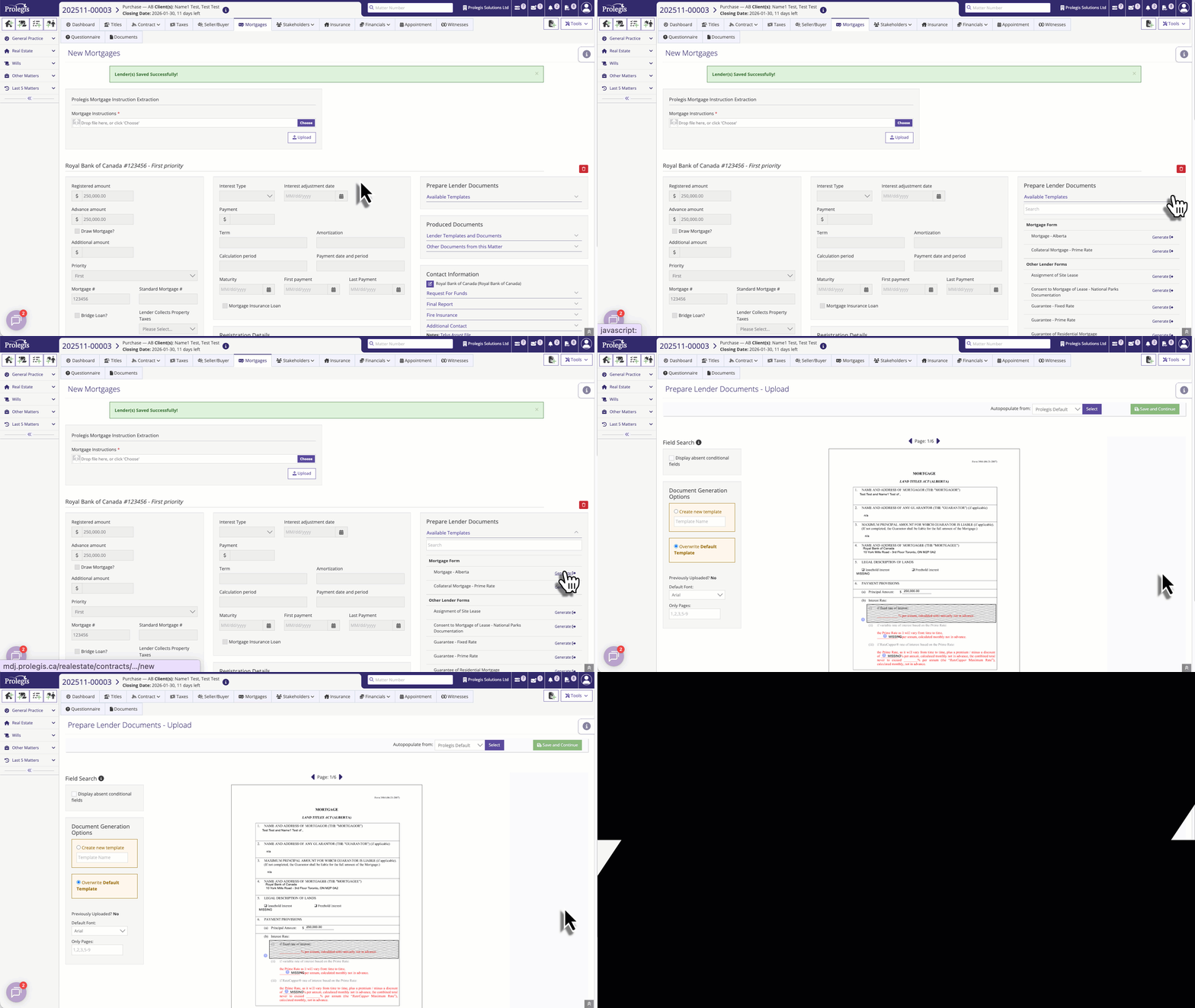
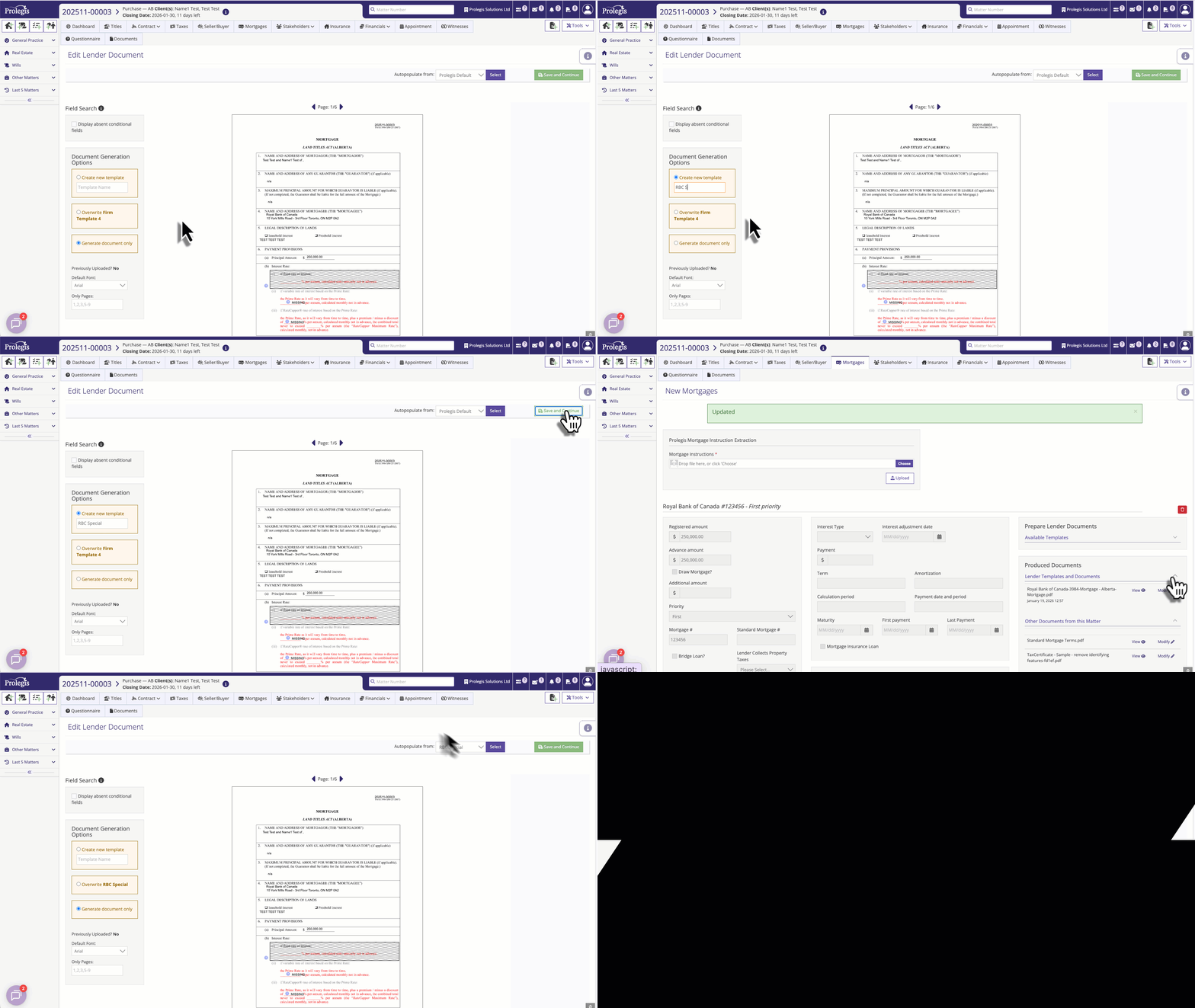
Once you've completed your data entry for your lender (and your matter) navigate to **Mortgage** and click **Available Templates**
In Available Templates you can search all Prolegis curated forms that are associated with the lender. If you have a PDF that has been uploaded to Prolegis by your team, simply choose that document from **Other Documents in this Matter**.
Click on the desired form to auto-populate with information from the matter. If the PDF is one that has been uploaded by your team, it may not fully populate. You can fill the template using the PDF Filler tool as demonstrated in the Add New Information section below.
****
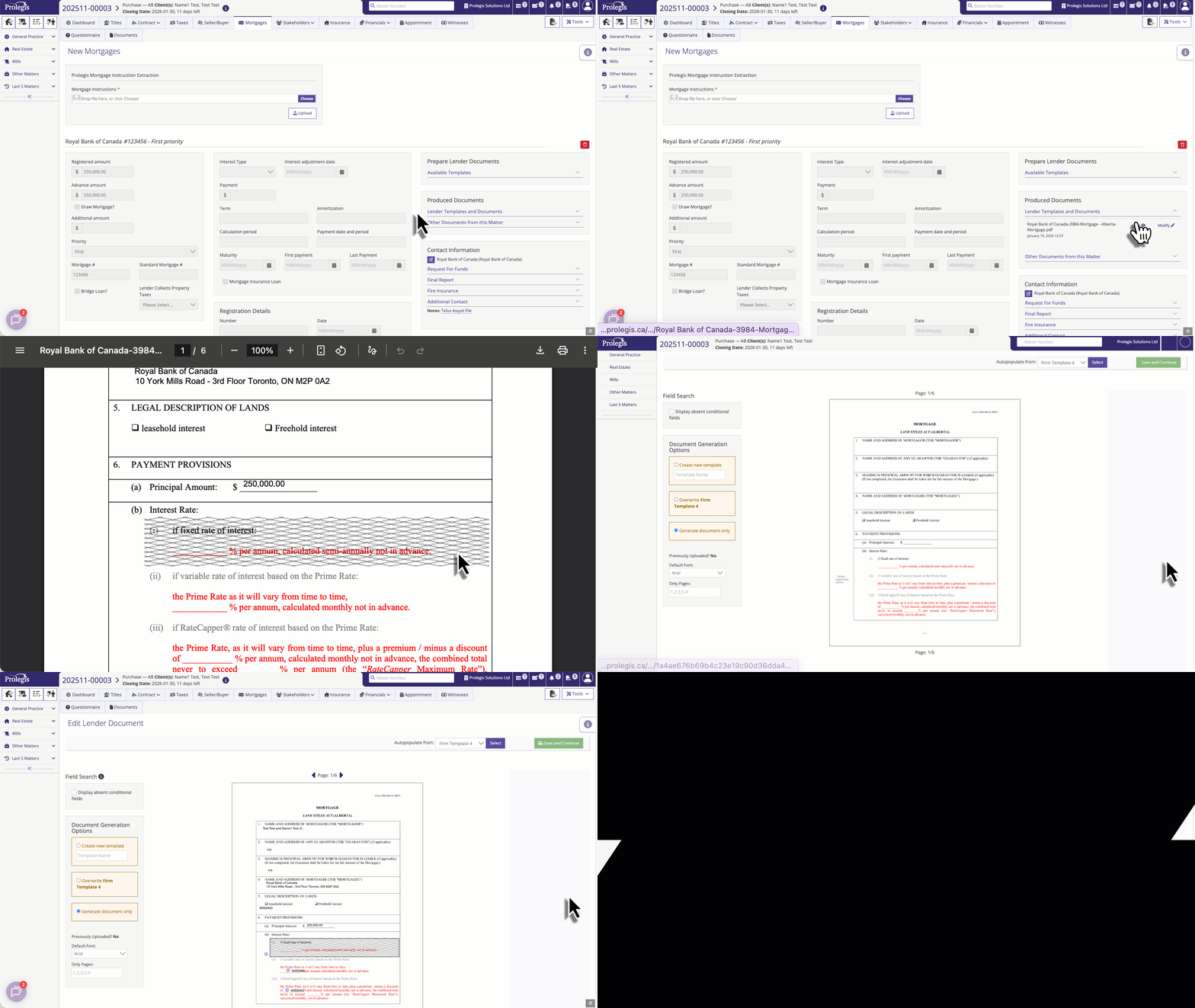
If you are happy with the form, click Save and Continue and the form will be saved to Documents and will be available for review and editing in **Produced \> Lender Templates and Documents**
****
Need to update a field in the produced document. Update the missing information and then edit the form. For a demonstration, see below:
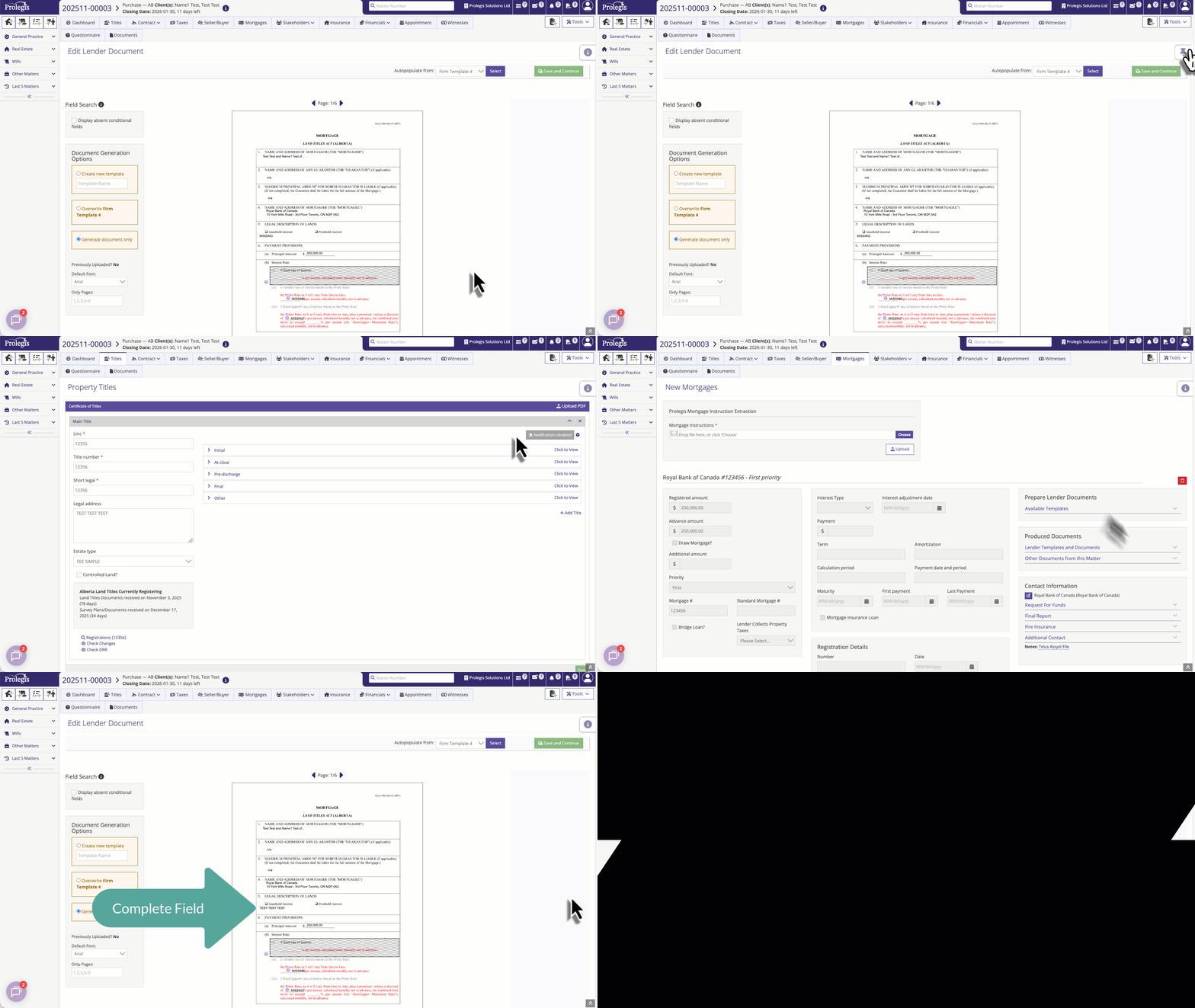
**Add New Information**
If you'd like to add new information to the document, hover over the document and click. You'll see the words "Open Editor".
Once in the Editor, you can drag fields from the matter onto the document, or you can add free form text, images, signatures, lines and boxes onto the document.
You can also adjust the placement of any of the fields in the document.
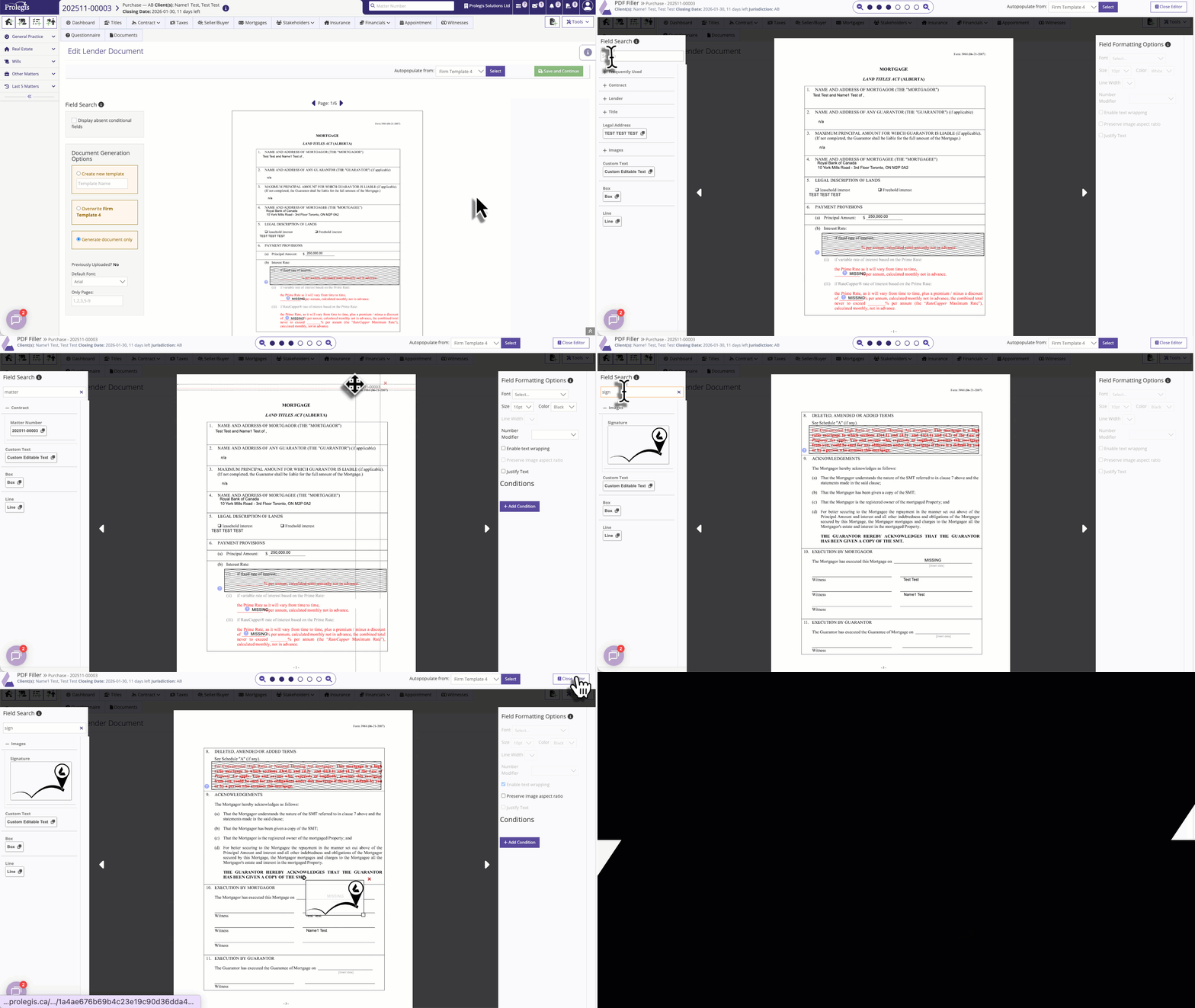
If you've modified a template, you can save it as a Firm Template for that lender going forward.
- [Get started](https://kb.prolegis.ca/get-started?hsLang=en)
- [Real Estate Conveyancing](https://kb.prolegis.ca/real-estate-conveyancing?hsLang=en#main-content)
- [Alberta](https://kb.prolegis.ca/real-estate-conveyancing?hsLang=en#alberta)
- [Ontario](https://kb.prolegis.ca/real-estate-conveyancing?hsLang=en#ontario)
- [Estate Plan](https://kb.prolegis.ca/estate-plan?hsLang=en)
- [Get Organized](https://kb.prolegis.ca/get-organized?hsLang=en)
- [New!](https://kb.prolegis.ca/new?hsLang=en)
- [FAQs](https://kb.prolegis.ca/faqs?hsLang=en)
- [Integrations](https://kb.prolegis.ca/integrations?hsLang=en)
- [Settings](https://kb.prolegis.ca/settings?hsLang=en)
[](http://www.prolegis.ca)
www.prolegis.ca Help Center
Copyright © 2026, Prolegis Solutions Ltd.