---
title: Generating Barcoded Documents
description: Prolegis populates RBC, BMO, and CIBC barcoded requests for funds, reporting letters and fax cover letters documents that require specialized tracking barcodes. Once you add and save the specific lender in the Mortgage layout, Prolegis automatically provides the necessary forms under mortgage documents.
---
[Skip to content](https://kb.prolegis.ca/generating-barcoded-documents#main-content)
[![Full Prolegis Logo.png\]](https://kb.prolegis.ca/hs-fs/hubfs/Full%20Prolegis%20Logo.png?width=200&height=88&name=Full%20Prolegis%20Logo.png)](https://simplicity.prolegis.ca/)
Open main navigation
Close main navigation
- [Home](https://kb.prolegis.ca/)
[Home](https://kb.prolegis.ca/?hsLang=en)
How can we help?
- There are no suggestions because the search field is empty.
1. [Prolegis Knowledge Base](https://kb.prolegis.ca/?hsLang=en)
2. [Real Estate Conveyancing](https://kb.prolegis.ca/real-estate-conveyancing?hsLang=en)
June 11, 2026
# Generating Barcoded Documents
## Prolegis populates RBC, BMO, and CIBC barcoded requests for funds, reporting letters and fax cover letters documents that require specialized tracking barcodes. Once you add and save the specific lender in the Mortgage layout, Prolegis automatically provides the necessary forms under mortgage documents.
### Step 1: Add and Save the Lender
[https://kb.prolegis.ca/adding-and-managing-lenders-in-prolegis-](https://kb.prolegis.ca/adding-and-managing-lenders-in-prolegis-?hsLang=en)
### Step 2: Locate the Barcode Documents
Once the lender is added, Prolegis dynamically populates the **Prepare Lender Documents** \> **Available Templates** section.
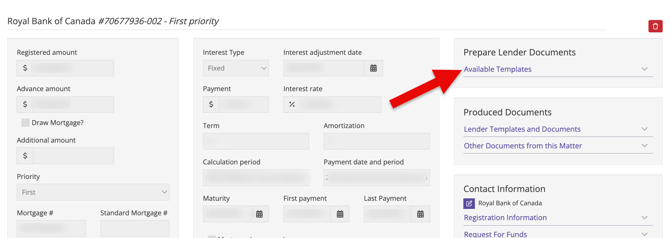
You will find the barcoded documents categorized under:
- **Request for Funds**
- **Final Reports**
- **Other Documents** (e.g., specific lender instructions or standard charge terms)

### Step 3: Data Entry & Form Completion
1. Click on the document you need to generate.
2. You will be presented with an interactive data entry form.
3. Review the auto-populated information and complete any remaining fields required by the legal team (e.g., specific registration numbers, adjust dates, or lawyer-specific notes).

### Step 4: Save and Generate
1. Review your data one final time for accuracy.
2. Click **Submit**.
3. The system will compile the data and produce the final PDF **complete with the required institutional barcode** ready for signing and submission.
Troubleshooting & Best Practices
- **Missing Barcode?** Ensure you selected the correct, official institutional lender entity in the Mortgage layout. Standard "generic" lender profiles will not trigger barcode document templates.
- **Need to make an edit after generation?** Because form fields are removed post-production, you cannot edit the output PDF. To fix an error, you must return to the Prolegis form, make your corrections there, and re-generate the document.
- [Get started](https://kb.prolegis.ca/get-started?hsLang=en)
- [Real Estate Conveyancing](https://kb.prolegis.ca/real-estate-conveyancing?hsLang=en#main-content)
- [Alberta](https://kb.prolegis.ca/real-estate-conveyancing?hsLang=en#alberta)
- [Ontario](https://kb.prolegis.ca/real-estate-conveyancing?hsLang=en#ontario)
- [Estate Plan](https://kb.prolegis.ca/estate-plan?hsLang=en)
- [Get Organized](https://kb.prolegis.ca/get-organized?hsLang=en)
- [New!](https://kb.prolegis.ca/new?hsLang=en)
- [FAQs](https://kb.prolegis.ca/faqs?hsLang=en)
- [Integrations](https://kb.prolegis.ca/integrations?hsLang=en)
- [Settings](https://kb.prolegis.ca/settings?hsLang=en)
[](http://www.prolegis.ca)
www.prolegis.ca Help Center
Copyright © 2026, Prolegis Solutions Ltd.