---
title: How do I create a letter or other type of document in Prolegis?
description: After you have completed the data entry into Prolegis, you are now ready to produce documents. You can produce documents at any stage of the process, however, the more complete your data entry, the more complete the documents will be.
---
[Skip to content](https://kb.prolegis.ca/how-do-i-create-a-letter#main-content)
[![Full Prolegis Logo.png\]](https://kb.prolegis.ca/hs-fs/hubfs/Full%20Prolegis%20Logo.png?width=200&height=88&name=Full%20Prolegis%20Logo.png)](https://simplicity.prolegis.ca/)
Open main navigation
Close main navigation
- [Home](https://kb.prolegis.ca/)
[Home](https://kb.prolegis.ca/?hsLang=en)
How can we help?
- There are no suggestions because the search field is empty.
1. [Prolegis Knowledge Base](https://kb.prolegis.ca/?hsLang=en)
2. [Settings](https://kb.prolegis.ca/settings?hsLang=en)
July 7, 2025
# How do I create a letter or other type of document in Prolegis?
## After you have completed the data entry into Prolegis, you are now ready to produce documents. You can produce documents at any stage of the process, however, the more complete your data entry, the more complete the documents will be.
After you have completed the data entry into Prolegis, you are now ready to produce documents. You can produce documents at any stage of the process, however, the more complete your data entry, the more complete the documents will be. If you are sending an initial client letter, you likely will not need to populate the entire matter to send a fully completed letter, but if you are looking to produce the transfer documents, you will, at a minimum, want to upload the title.
In Prolegis, you will be able to edit the language of the documents in your browser window without needing to export the document to a separate piece of software for completion.
To create the documents, either click the quick document create button
-gif.gif?width=688&height=370&name=2025-07-05_17-38-59%20(1)-gif.gif)
OR go to the Progress Dashboard and click +Create on the relevant checklist step
-gif.gif?width=688&height=367&name=2025-07-04_17-40-24%20(1)-gif.gif)
OR go to the Documents Action, click +Precedents and select the document you would like to produce.
-gif.gif?width=688&height=370&name=2025-07-05_17-42-23%20(1)-gif.gif)
To edit the text, click on the editor window. Place your cursor where you would like to make the change and make the changes you would like to make. You can also highlight text to remove or change the formatting on that text.
-gif.gif?width=688&height=370&name=2025-07-05_17-45-46%20(1)-gif.gif)
To add a single space, click “Shift” and “Return” on your keyboard at the same time.
You will see a menu bar with editing options.

What follows is a brief description of some of the menu functions. The descriptions begin on the top row and move to the right, then go to the second row and move to the right.
- "Preview" - see what your document will look like. This is a Print / PDF Preview.
- “Heading” - This allows you to set the style of the text in the document
- B – inserts bold text
- I – inserts italicized text
- U – inserts underlined text
- S – puts a line through the text
- X – allows you to insert text that is subline; allows you to insert text that is above line
-  - allows you to change the size of the font
-  - allows you to change the font type
-  - allows you to change the colour of the font
-  - allows you to change the background colour of the font
-  - allows you to highlight the font
-  - when text is highlighted, it removes any formatting from the text
-  - inserts a numbered list
-  - inserts a bulleted list
-  - increases or decreases the indent of the paragraph
- - allows you to change the way the paragraph is aligned (left, right, center and justified)
-  - adds a hyperlink
-  - adds a block quote
-  - adds a table
- - adds a horizontal line across the page
-  - gives access to special characters
- - page break
- - section break
- -document break - creates a separate PDF document
-  - add an email signature to the page
- - undo and redo
- - find and replace
- - export to Word
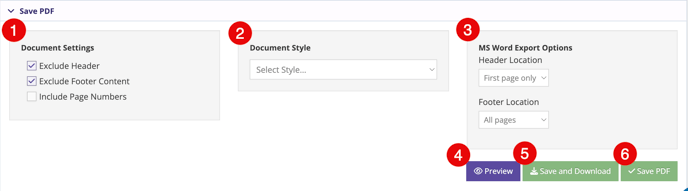
You can adjust the general formatting of the document using the menu located at the bottom of the document.
1\. add or exclude the header, footer and page number as desired. Prolegis can be configured to automatically present your preferred set up for the produced document
2\. use Document Style to select a different format for the document, whether that is a different letterhead, different page margins or a completely different style set for the document
3\. add or exclude the header, footer and page number as desired for Microsoft Word export.
4\. To preview the document, click Preview, which will give you a view of what the document will look like as a PDF.
5\. Create the PDF and download the PDF to your downloads folder simultaneously
6\. Create the PDF.
To modify a created PDF, go to the Documents action, click Options then Modify.
-gif.gif?width=688&height=101&name=2025-07-07_13-51-29%20(1)-gif.gif)
- [Get started](https://kb.prolegis.ca/get-started?hsLang=en)
- [Real Estate Conveyancing](https://kb.prolegis.ca/real-estate-conveyancing?hsLang=en#main-content)
- [Alberta](https://kb.prolegis.ca/real-estate-conveyancing?hsLang=en#alberta)
- [Ontario](https://kb.prolegis.ca/real-estate-conveyancing?hsLang=en#ontario)
- [Estate Plan](https://kb.prolegis.ca/estate-plan?hsLang=en)
- [Get Organized](https://kb.prolegis.ca/get-organized?hsLang=en)
- [New!](https://kb.prolegis.ca/new?hsLang=en)
- [FAQs](https://kb.prolegis.ca/faqs?hsLang=en)
- [Integrations](https://kb.prolegis.ca/integrations?hsLang=en)
- [Settings](https://kb.prolegis.ca/settings?hsLang=en)
[](http://www.prolegis.ca)
www.prolegis.ca Help Center
Copyright © 2026, Prolegis Solutions Ltd.