![Full Prolegis Logo.png]](https://kb.prolegis.ca/hs-fs/hubfs/Full%20Prolegis%20Logo.png?width=200&height=88&name=Full%20Prolegis%20Logo.png)
- Client Portal Login Customization: Upload your firm logo to brand the Client Portal with your firm.
- Upload your logo under “Firm > Settings > Profile”
- Upload your logo under “Firm > Settings > Profile”
- Instructions: The “Instructions” can be customized. If you prefer to add variable information to personalize the instructions and show client names, property addresses or anything like that, send us the instructions you prefer to precedents@prolegis.ca.
- You can customize under “Real Estate > Settings > Client Portal”
- You can customize under “Real Estate > Settings > Client Portal”
- Additional Questions (Questionnaire Tab): To add or adjust additional questions in the Questionnaire section, go to “Real Estate > Questionnaire”
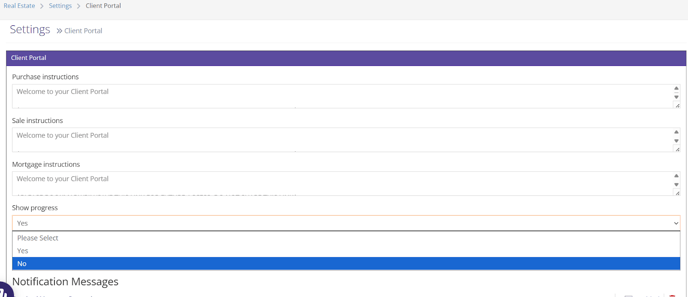
- Progress Circles: The Progress circles can be turned off if you’d prefer the client not to see the Progress of the matter based on your checklist.
- Click “Real Estate > Settings > Client Portal” and click “No” under “Show Progress”.
- Display Financial Breakdown on Client Portal:
- Actions > Statement of Adjustments: Click “Visible on Client Portal” and Save.
- Actions > Trust Ledger: Click “Visible on Client Portal” and Save.
- Send Clients documents on Client Portal:
- Go to “Actions > Documents” and on any document you want to be available for the client, click “Options > Portal Visibility > Show (Client)”
- Go to “Actions > Documents” and on any document you want to be available for the client, click “Options > Portal Visibility > Show (Client)”