---
title: How do I set the top page margin for the 2nd and subsequent pages in Prolegis?
description: How do I set the top page margin for the 2nd and subsequent pages in Prolegis?
---
[Skip to content](https://kb.prolegis.ca/how-do-i-set-the-top-page-margin-for-the-2nd-and-subsequent-pages-in-prolegis#main-content)
[![Full Prolegis Logo.png\]](https://kb.prolegis.ca/hs-fs/hubfs/Full%20Prolegis%20Logo.png?width=200&height=88&name=Full%20Prolegis%20Logo.png)](https://simplicity.prolegis.ca/)
Open main navigation
Close main navigation
- [Home](https://kb.prolegis.ca/)
[Home](https://kb.prolegis.ca/?hsLang=en)
How can we help?
- There are no suggestions because the search field is empty.
1. [Prolegis Knowledge Base](https://kb.prolegis.ca/?hsLang=en)
2. [Settings](https://kb.prolegis.ca/settings?hsLang=en)
October 23, 2025
# How do I set the top page margin for the 2nd and subsequent pages in Prolegis?
## How do I set the top page margin for the 2nd and subsequent pages in Prolegis?
This feature provides granular control over document formatting by allowing users to independently set the top margin for the second page and all subsequent pages of a document.
Functionality: The tool separates the first page's top margin setting from the rest of the document body.
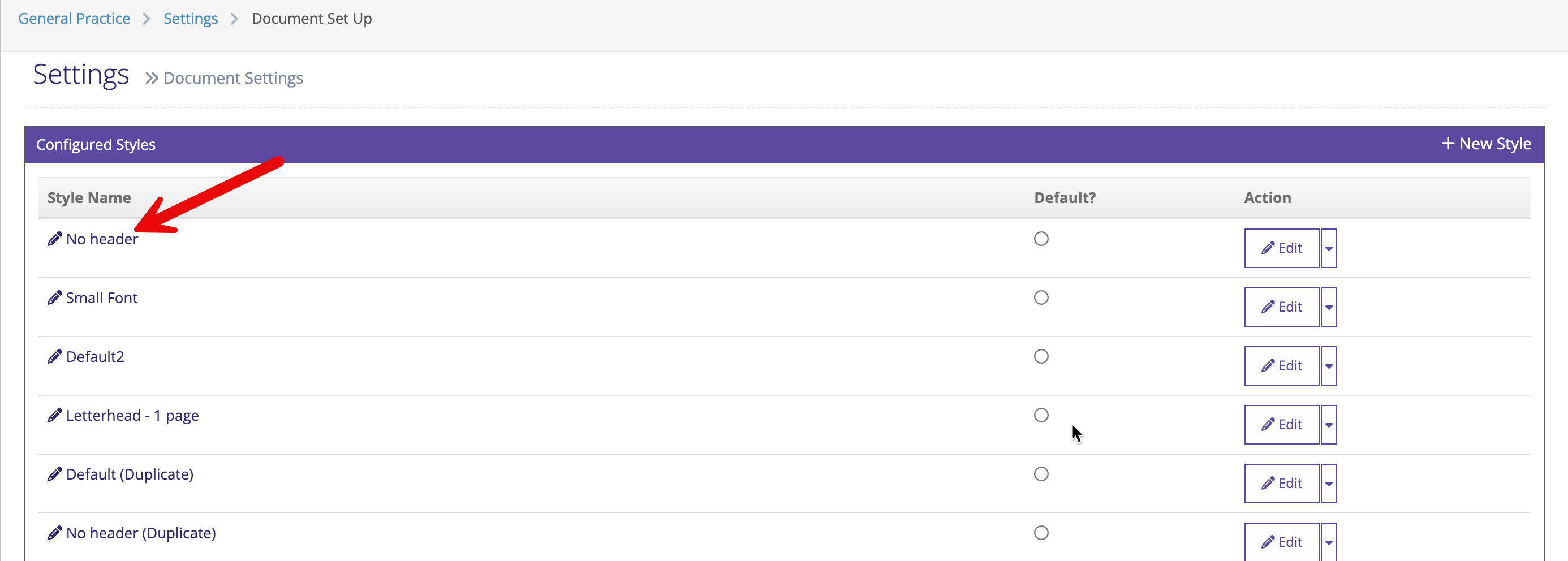
To set the second and subsequent page top margin, go to [General Practice \> Settings \> Document Setup](https://simplicity.prolegis.ca/practice/settings/precedent-style/).
Click on the Configured Style you would like to update or create a new Style.
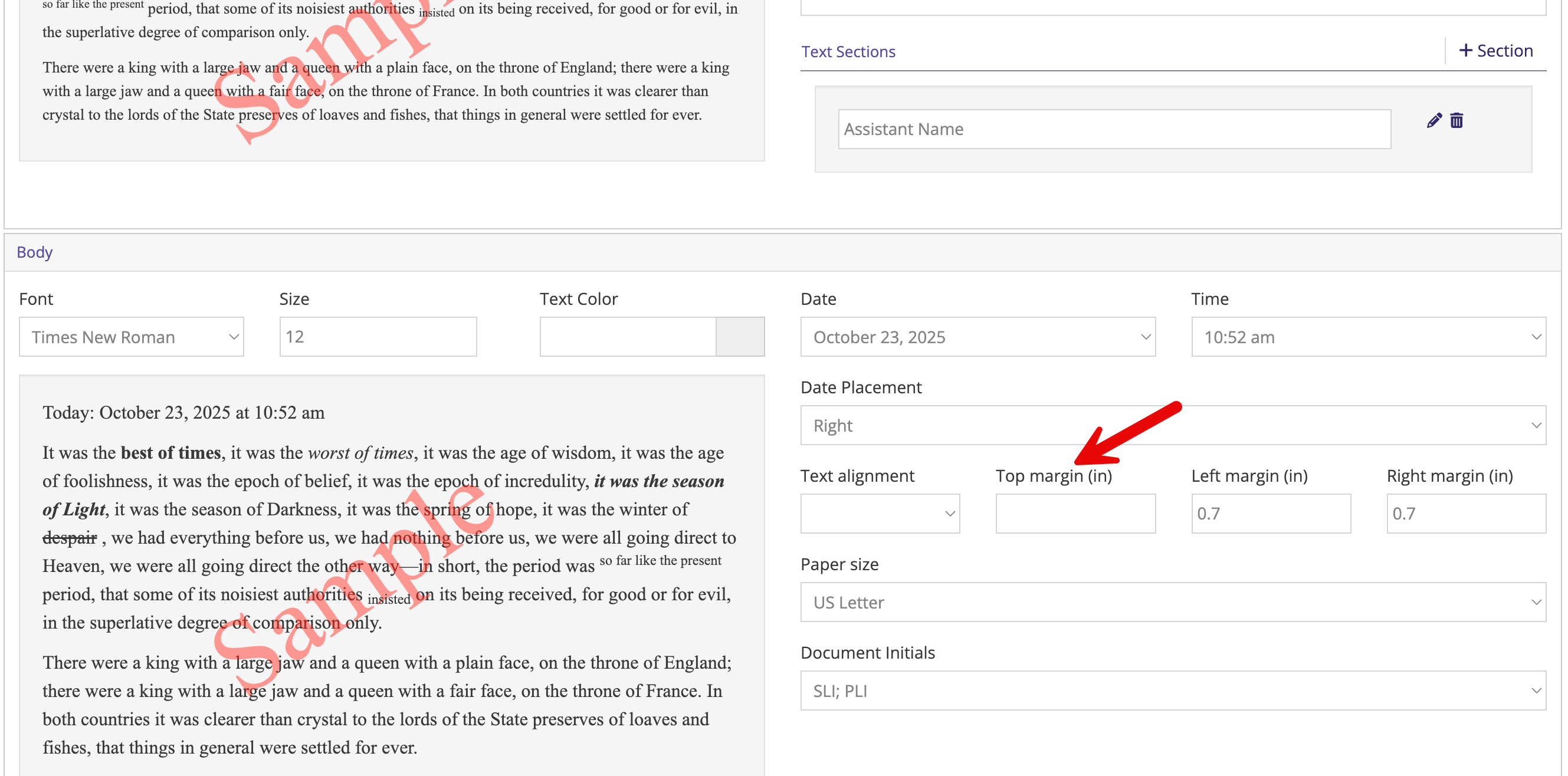
Navigate down to the Top Margin and enter (in inches) the height of the margins you'd like to have for the second and subsequent pages.
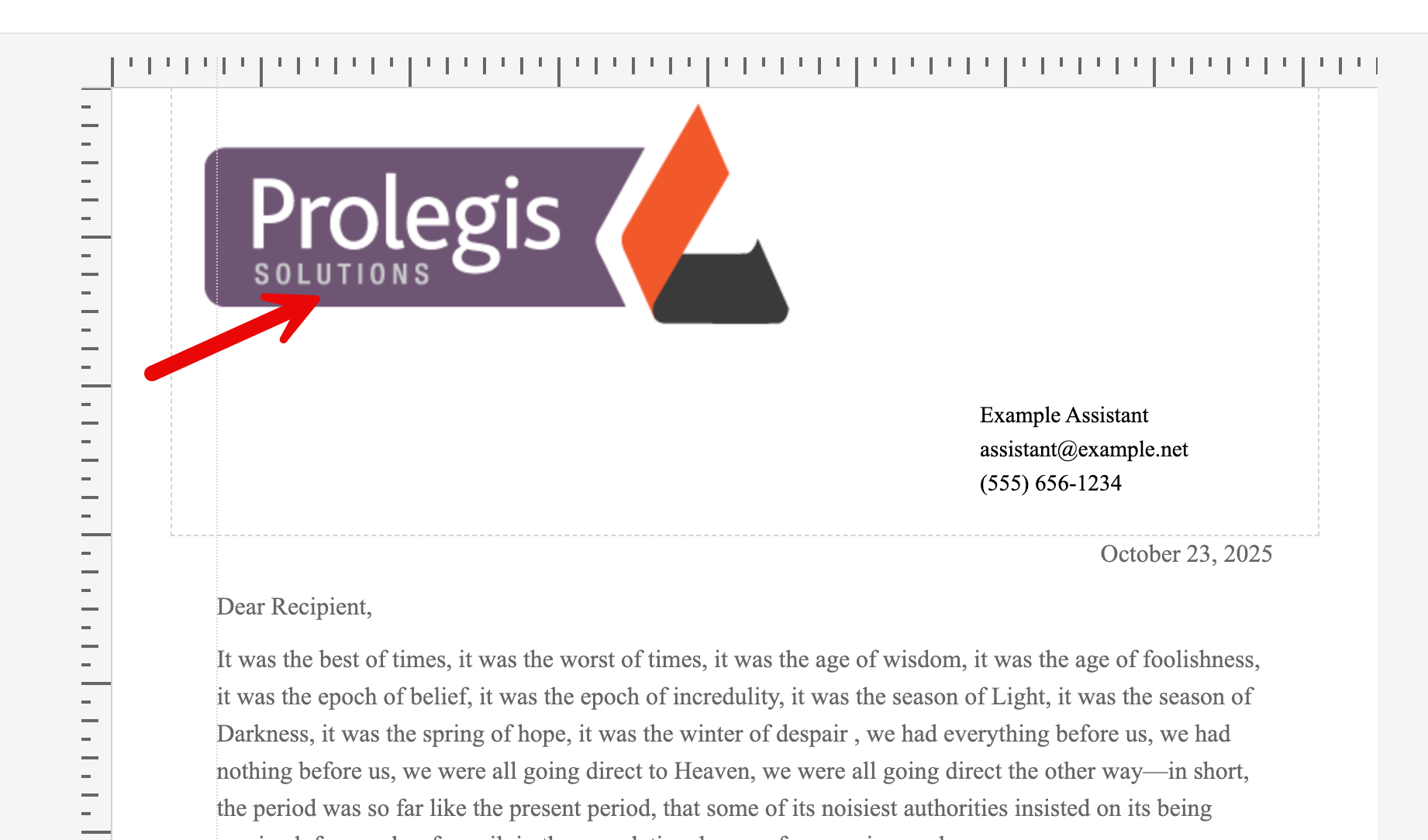
If setting the 2nd page margin on a pre-existing document template, you will need to adjust the height of the customer’s header on the first page. Adding a second and subsequent page margin automatically sets your first page header to zero margin and will result in their header on the first page moving upward from its existing position.
To adjust the placement of your header, navigate to the Style as indicated above.
Navigate to the header section and click Design.

Drag the icon to where you'd like it to sit on the first page.
- [Get started](https://kb.prolegis.ca/get-started?hsLang=en)
- [Real Estate Conveyancing](https://kb.prolegis.ca/real-estate-conveyancing?hsLang=en#main-content)
- [Alberta](https://kb.prolegis.ca/real-estate-conveyancing?hsLang=en#alberta)
- [Ontario](https://kb.prolegis.ca/real-estate-conveyancing?hsLang=en#ontario)
- [Estate Plan](https://kb.prolegis.ca/estate-plan?hsLang=en)
- [Get Organized](https://kb.prolegis.ca/get-organized?hsLang=en)
- [New!](https://kb.prolegis.ca/new?hsLang=en)
- [FAQs](https://kb.prolegis.ca/faqs?hsLang=en)
- [Integrations](https://kb.prolegis.ca/integrations?hsLang=en)
- [Settings](https://kb.prolegis.ca/settings?hsLang=en)
[](http://www.prolegis.ca)
www.prolegis.ca Help Center
Copyright © 2026, Prolegis Solutions Ltd.