---
title: How do I make a will and other estate planning documents in Prolegis?
description: Getting started is sometimes the hardest part. This article provides suggestions on starting your first will.
---
[Skip to content](https://kb.prolegis.ca/how-do-i-start-my-first-will-in-prolegis#main-content)
[![Full Prolegis Logo.png\]](https://kb.prolegis.ca/hs-fs/hubfs/Full%20Prolegis%20Logo.png?width=200&height=88&name=Full%20Prolegis%20Logo.png)](https://simplicity.prolegis.ca/)
Open main navigation
Close main navigation
- [Home](https://kb.prolegis.ca/)
[Home](https://kb.prolegis.ca/?hsLang=en)
How can we help?
- There are no suggestions because the search field is empty.
1. [Prolegis Knowledge Base](https://kb.prolegis.ca/?hsLang=en)
2. [Estate Plan](https://kb.prolegis.ca/estate-plan?hsLang=en)
July 1, 2025
# How do I make a will and other estate planning documents in Prolegis?
## Getting started is sometimes the hardest part. This article provides suggestions on starting your first will.
This article will look at three basic approaches to making a will and other estate planning documents. This article is for new users.
**The Wills Module**
If the Wills module is not available on your account, chat into our our live chat or write us at support@prolegis.ca to activate the Wills module.
**Let Prolegis Works Guide you.**
Prolegis has a built-in flow that walks you through the creation of the will. For best results, have all of your instructions available to you as the flow is primarily a data entry flow.
To access the flow, login to Prolegis and click [here](https://simplicity.prolegis.ca/wills/matters?userflow=55129bd6-5123-4a7d-b76d-f9801d991582).
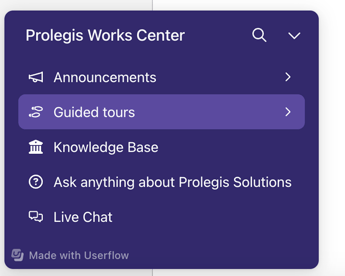
or access the guide by clicking the Prolegis Works button in the bottom left hand corner 
and then clicking "Guided Tours" and select a will tour.
**Let Our Team Guide You**
We are happy to have a live person guide you through your wills process. Once logged into your account, click the Prolegis Works button in the bottom left hand corner and click "Live Chat".
Let us know you'd like some help. We'll make arrangements to provide assistance.
**Just Get Going**
If you are familiar with Prolegis' other software tools, or you like to adventure into the software, you can get started by Opening a Wills matter.
**Opening a New Matter**
To Create a new matter click on the Wills menu on the left-hand side of the screen and click on Quick Add, the Click +Matter.
To add the client for the matter, simply begin typing the name of the individual. As you type, Prolegis searches through your existing client database for matches. If the client is already in the database, click on the name of the client to add the client to the matter. If the client is not already in the database, the last item on the list will be “Add new client”. Click on “Add new client” and complete the form.
**NOTE:** if you decide to use the online form for your client, at a minimum we recommend you add the first and last name and the email address for the client. Through the portal the client will be able to complete the rest of the information. You can also complete this information.
To add another client, simply begin typing the name of the client and repeat the process.
Population of the matter number is driven by the firm settings. You can manually insert the matter number or have the system generate it for you [here](https://simplicity.prolegis.ca/practice/settings/general/).
Choose the Responsible Lawyer and Assistant and click "Create".
**Now What?**
To begin your data entry, go to the Actions menu in the top right hand corner.

When you navigate your Actions menu from top to bottom, you are led through a logical data entry sequence of your matter.
The following actions in the Action menu are for data entry for wills:
- Questionnaire
- Testators
- Children & People
- Assets
- Appointment
- Funeral Arrangements
The following actions are used to build the will:
- Gifts
- Representatives
- Guardians
The Power of Attorney is its own action as is Personal Directive.
**What's Next**
Draft and Produce
Communicate
Sign
Report
- [Get started](https://kb.prolegis.ca/get-started?hsLang=en)
- [Real Estate Conveyancing](https://kb.prolegis.ca/real-estate-conveyancing?hsLang=en#main-content)
- [Alberta](https://kb.prolegis.ca/real-estate-conveyancing?hsLang=en#alberta)
- [Ontario](https://kb.prolegis.ca/real-estate-conveyancing?hsLang=en#ontario)
- [Estate Plan](https://kb.prolegis.ca/estate-plan?hsLang=en)
- [Get Organized](https://kb.prolegis.ca/get-organized?hsLang=en)
- [New!](https://kb.prolegis.ca/new?hsLang=en)
- [FAQs](https://kb.prolegis.ca/faqs?hsLang=en)
- [Integrations](https://kb.prolegis.ca/integrations?hsLang=en)
- [Settings](https://kb.prolegis.ca/settings?hsLang=en)
[](http://www.prolegis.ca)
www.prolegis.ca Help Center
Copyright © 2026, Prolegis Solutions Ltd.