![Full Prolegis Logo.png]](https://kb.prolegis.ca/hs-fs/hubfs/Full%20Prolegis%20Logo.png?width=200&height=88&name=Full%20Prolegis%20Logo.png)
For best practices in utilizing the Client Portal and Intake Questionnaire within Prolegis, consider the following:
- When Creating a New Matter
Ensure to include email addresses and cell phone numbers of your clients to quickly send access to the Client Portal / Intake Questionnaire and Electronic ID Verification when the matter is opened.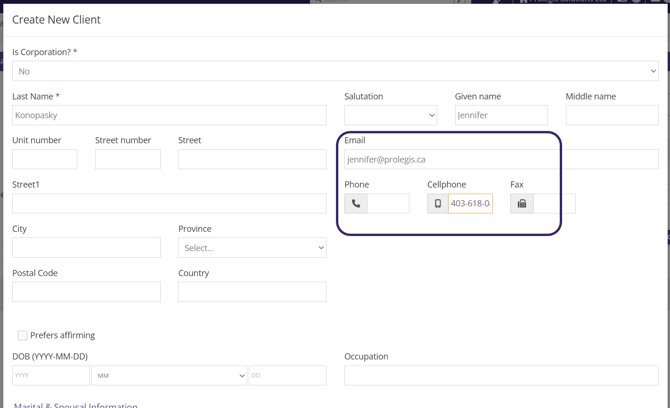
- Send Client Portal/Intake Questionnaire Link (Two Ways):
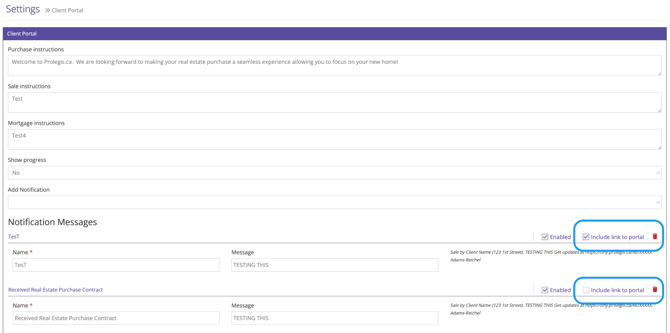
- Automated Text - If you want the client to receive a link to their portal automatically through a text, you can set up a text notification that they will each receive when you check the corresponding step off in the matter checklist. This function is activated by:
- Navigating to Real Estate > Settings > Client Portal
- Toggling on or off the box beside Include link to Portal
- Save the changes
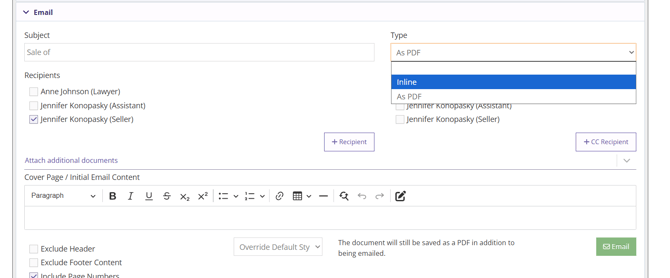
- Email - If you want to send the client portal link via email, click “Create” on the step Initial Client Letter from your matter checklist.
- When you create the letter, from the editor screen, scroll down to the bottom and click “Email”.
- Under “Type”, change the format to Inline so the letter is the email you are sending.
- Click all of the Client’s names that need to access the portal from the recipients list and select if you want to cc anyone.
- Click “Email”.
- The email will display that it was sent from the user that sent the email from Prolegis.
- If the client clicks to reply to the email, it will default to the sender's email address. You will receive this email in your mail provider inbox (Outlook, Gmail, Etc.)
- Automated Text - If you want the client to receive a link to their portal automatically through a text, you can set up a text notification that they will each receive when you check the corresponding step off in the matter checklist. This function is activated by: