---
title: Prolegis Self-Driven Learning Guide
description: This guide is designed for a brand-new user learning Prolegis independently in a demo environment or demo matter.
---
[Skip to content](https://kb.prolegis.ca/prolegis-self-driven-learning-guide#main-content)
[![Full Prolegis Logo.png\]](https://kb.prolegis.ca/hs-fs/hubfs/Full%20Prolegis%20Logo.png?width=200&height=88&name=Full%20Prolegis%20Logo.png)](https://simplicity.prolegis.ca/)
Open main navigation
Close main navigation
- [Home](https://kb.prolegis.ca/)
[Home](https://kb.prolegis.ca/?hsLang=en)
How can we help?
- There are no suggestions because the search field is empty.
1. [Prolegis Knowledge Base](https://kb.prolegis.ca/?hsLang=en)
2. [Get started](https://kb.prolegis.ca/get-started?hsLang=en)
April 23, 2026
# Prolegis Self-Driven Learning Guide
## This guide is designed for a brand-new user learning Prolegis independently in a demo environment or with a demo matter.
### **How to Use This Guide**
Work through the modules in order. Each module includes:
- **Why this matters** — why the task is important in real work
- **What you’ll do** — the practical task to complete
- **Guided exploration** — what to click, test, or observe
- **Success check** — how to confirm you are ready to move on
#### **Before You Start**
- Use a **demo environment or demo matter** so you can explore freely
- Expect to learn by **clicking, testing, and correcting mistakes**
#### **What You Should Be Able to Do by the End**
By the end of this guide, you should be able to:
- Navigate key parts of Prolegis confidently
- Find and open a matter quickly
- Correct document issues by fixing data entry and regenerating documents
- Generate lender documents correctly
- Use communication and databases appropriately
- Create a matter and understand how financial calculations are driven
- Complete a basic end-to-end file workflow without guidance
---
### **Module 1: Orientation**
#### **Why this matters**
Before using any legal software, you need a simple mental model of how the work fits together.
#### **What you’ll do**
Understand the overall workflow in Prolegis.
#### **Guided Exploration**
- Login at **[simplicity.prolegis.ca/login](http://simplicity.prolegis.ca/login)** using a **[Chrome](https://www.google.com/intl/en_ca/chrome/)** browser for best results. You can also use Edge, Safari, or Firefox.
- If you’re not very familiar with computers, think of your web browser (Chrome) like a binder. Each **tab** is like a separate page in that binder—you can have multiple pages open at once and quickly switch between them without losing your place.
When working in **Prolegis**, this is especially helpful. You might want one tab open for a client’s matter, another for documents, and another for notes or billing. Opening links in a **new tab** lets you keep everything organized and visible without constantly going back and forth.
### How to open a link in a new tab
**On a Mac (Apple computer):**
- Hold down the **Command (⌘)** key and **click the link**
**On a Windows PC:**
- Hold down the **Ctrl** key and **click the link**
### What this does
- The link opens in a **new tab** at the top of your browser
- Your current page stays open
- You can switch between tabs by clicking them at the top
This makes it much easier to work within **the same matter** (for example, viewing details in one tab and documents in another) or even across **multiple matters at once**, all within the same browser window.
- Wherever you see a small downward-pointing arrow in Prolegis, it is used to indicate that more options are available.
**Function:**
Clicking this icon will open a dropdown menu or expand a section, allowing you to view additional options or access a data entry screen. It’s commonly used to keep the main screen simple while still giving you access to more detailed actions when needed
- The following buttons at the top left side (above the General Practice menu) have the following purposes:
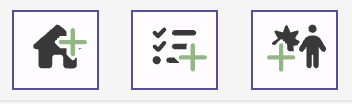
- From left to right
- Add a new Real Estate matter
- Add a new Follow Up
- Add a new Prospect
- The following icons at the top right side of your Prolegis screen have the following purposes:

- From left to right
- List of outstanding follow up items
- List of unread text messages
- List of outstanding checklist items
- List of documents that have been reviewed by AI and are ready for your review
- Your profile menu
#### **Success Check**
- Click on the down-ward pointing arrow next to **General Practice** to close and open the menu
- In the [**General Practice**](https://simplicity.prolegis.ca/practice/dashboard) menu, open the Clients menu item in a new tab.
#### **Additional Materials**
- [Navigation FAQ](https://kb.prolegis.ca/prolegis-solutions-matter-navigation-interface-upgrade-faq?hsLang=en)
- [Set your preferred landing page](https://kb.prolegis.ca/landing-page?hsLang=en)
---
### **Module 2: Navigation**
#### **Why this matters**
Every task in Prolegis starts with knowing where to go quickly.
#### **What you’ll do**
Learn the main areas of the system without trying to learn everything at once.
#### **Guided Exploration**
1. Go to [**Dashboard**](https://simplicity.prolegis.ca/practice/dashboard)
- All matters will appear in the Matter List (regardless of matter type)
- Clicking +Filters enables you to search all matters in the Matter List
- Ask: "How would I use this function in my daily work?"
2. Go to **Calendar**
- Identify what needs to happen today
- Click +Filters
- Ask: "What do I want to see on my calendar?"
3. Go to [**Clients**](https://simplicity.prolegis.ca/practice/clients/) (within the **General Practice** menu)
- All client information—including ID, contact details, personal information, and any related matters—is stored centrally in Prolegis. This allows you to access and manage all relevant client data in one place.
**Note:** Prolegis can integrate with practice management software such as Clio, which allows client information to be automatically shared between systems, reducing duplicate data entry and helping keep records consistent.
- Identify a client related to current work
- Click Actions \> Profile
- Ask: "How can this layout be used to improve my work?"
4. Briefly visit **Settings** (within the **General Practice** menu)
- Understand that this is where configuration lives
- Do not do a deep dive yet
#### **Success Check**
- Can you move between Dashboard, Calendar, Clients, and Settings without hesitation?
- Can you explain what each area is mainly used for?
#### **Additional Materials**
- [I'm struggling with being organized. How does Prolegis help me?](https://kb.prolegis.ca/prolegis-solutions-matter-navigation-interface-upgrade-faq?hsLang=en)
---
### **Module 3: Real Estate Module Overview**
#### **Why this matters**
This is where real estate work is organized, but at this stage your goal is familiarity, not mastery.
#### **What you’ll do**
Recognize the core real estate areas without trying to learn every feature.
#### **Guided Exploration**
- Go to the **Real Estate** menu and click the downward-pointing arrow to open the menu
- Identify:
- **Matters** — where real estate matters can be accessed, searched and exported
- Click Filters to see all available data fields that can be used to search matters
- **Dashboard**
- [**Closing Calendar**](https://simplicity.prolegis.ca/realestate/dashboard/closing-calendar) - monthly overview of all closings showing who is assigned
- [**Daily Closing**](https://simplicity.prolegis.ca/realestate/dashboard/daily-closings) - daily overview of all closings with checklist steps
- [**Workstep Overview**](https://simplicity.prolegis.ca/realestate/dashboard/worksteps) - outstanding checklist steps from all assigned matters (and firm matters)
- **Settings**
- Understand that this is where configuration lives
- Do not do a deep dive yet
#### **Success Check**
- Can you identify where matters live, where progress is shown and where settings can be configured?
---
### **Module 4: Searching & Matter Access**
#### **Why this matters**
In practice, you usually search because something is urgent: a client calls, a lawyer asks for an update, or a closing is approaching.
#### **What you’ll do**
Use search to quickly find and assess a matter.
#### **Guided Exploration**
**Scenario:** You need to pull up the Smith file and confirm whether it is ready for closing.
- Use the **Matter Search Bar** (located at the top of the screen)
- Search by client name or file name
- Open the correct matter
- Review the **Progress Dashboard**
- Answer:
- What stage is the file in?
- Is anything missing before closing?
#### **Success Check**
- Can you find and open the correct matter quickly?
- Can you identify the current stage and any obvious missing steps?
#### **Additional Materials**
- [How do I find matters in Prolegis?](https://kb.prolegis.ca/prolegis-solutions-matter-navigation-interface-upgrade-faq?hsLang=en)
---
### **Module 5: Data Entry Methodology**
#### **Why this matters**
Prolegis is a data-driven system. Documents, lender packages, and financials are all generated from structured data within the matter.
Incorrect output usually comes from incorrect data — not incorrect documents. Understanding where data lives and how it is entered is the foundation for using Prolegis effectively.
#### **What you’ll do**
Learn how data is organized across tabs, how to enter and locate information, and how to move from data → documents → actions within a matter.
#### **Guided Exploration**
**Scenario:** You are reviewing a matter and need to understand where information is stored, how to update it, and how it connects to documents.
- Go to a matter using the **Matter Search** bar.
- Click through several **data entry tabs** (e.g., Titles, Seller/Buyer, Mortgages, Stakeholders)
- Observe that each tab opens a **layout where specific information is entered**
- Ask: *“What type of data belongs in this section?”*
- Click the **document + icon**
- Search for a document to create
- Note that documents are generated from the matter data
- Open the **Tools menu**
- Review additional tools for:
- data entry
- document preparation
- workflow actions
- Hover over the **“i” icon (flyout menu)**
- Review quick access matter information
- Copy a piece of information
- Add a note to the matter
- Generate a document to see how the data change affects the output
- Open a Data Entry tab in a new Chrome tab and update a field that is in the document
- Go back to the Chrome tab with the document and [**refresh**](https://www.wikihow.com/Refresh-a-Page) the Chrome browser to update your document
---
#### **Key Rule**
Data lives in tabs. Documents are generated from that data. Tools act on the data.
> Always ask: *“Where does this information live?”* before making changes.
---
#### **Success Check**
- Can you navigate directly to the correct tab for a piece of information?
- Can you explain how data in tabs connects to documents?
- Can you locate and use:
- the document + icon
- the Tools menu
- the “i” flyout panel
- Can you update data and see its impact on a generated document?
#### **Additional Materials**
- [Where can I find it in Prolegis?](https://kb.prolegis.ca/where-can-i-find-it-in-prolegis?hsLang=en)
---
### **Module 6: Document Creation**
#### **Why this matters**
Document creation is one of the highest-value tasks in Prolegis.
#### **What you’ll do**
Create, review, edit appropriately, preview, and export a document.
#### **Guided Exploration**
1. Click the **Document + icon**
2. Create a document (for example, a letter)
3. Review the **Documents Layout**
4. Use the **Editor Bar** to make allowed edits
5. Use the **live preview** to see how the document will look
6. Export to PDF or Word
#### **Critical Rule**
If a document is incorrect because of data entry, it may be better to **regenerate**, not manually fix.
**Always:**
1. Fix the data entry source
2. Regenerate the document
#### **Common Mistake: Editing Instead of Regenerating**
**What users often do:**
- Manually change the document text
**Why this is a problem:**
- The bad data remains in the file
- Future documents repeat the mistake
- File consistency breaks down
**Correct approach:**
- Fix data entry
- Regenerate the document
#### **Common Issue: Line Breaks While Editing**
**What happens:**
- Pressing **Return (Mac)** or **Enter (PC)** creates a full paragraph break (2 lines)
**Correct approach:**
- For a single line break, use:
- **Shift + Return (Mac)**
- **Shift + Enter (PC)**
#### **FAQ: How do I get my document onto one page?**
Try these in order:
1. Use toolbar options such as font size
2. Change the **Document Style** (margins, spacing, font size)
3. Export to **Word** for final formatting if needed
#### **FAQ: How can I tell what my document will look like?**
- Use the **live preview**
- Treat preview as your final quality check before export
#### **FAQ: When should I use Prolegis vs Word for formatting?**
**Use Prolegis when:**
- You want consistency across documents
- The document is standard and data-driven
- The document may need regeneration later
**Use Word when:**
- You need final polish
- The layout is highly customized
- The change is one-off and presentation-focused
#### **Success Check**
- Can you create a document, identify an issue, fix the source, regenerate, preview, and export it correctly?
#### **Additional Materials**
- [How do I create a letter or other document in Prolegis?](https://kb.prolegis.ca/how-do-i-create-a-letter?hsLang=en)
- [How do I get my document onto one page?](https://kb.prolegis.ca/i-want-my-letter-to-fit-on-one-page.-can-i-change-the-margins-in-prolegis?hsLang=en)
- [Can I bundle my documents together into packages?](https://kb.prolegis.ca/can-i-bundle-my-precedent-documents-together-into-packages?hsLang=en)
---
### **Module 7: Lender Documents**
#### **Why this matters**
Lender documents are time-sensitive and high-risk. They use the same logic as other documents, but accuracy matters even more.
#### **What you’ll do**
Generate lender documents, refresh them after data changes, and understand how lender records control document availability.
#### **Guided Exploration**
1. Open a matter with lender information
2. Generate lender documents
3. Confirm that lender PDFs are auto-completed from matter data
4. Change a key data field and refresh/regenerate the lender document
#### **How Lender Documents Work**
- Prolegis has a **database of lender PDF documents**
- These documents are auto-completed with data from the matter
- When data entry is updated, the lender document can be refreshed to pull in new information
#### **Critical Concept: Lender Documents Are Attached to the Lender**
- Lender documents are attached to the **selected lender record**
- If the wrong lender is selected, or a duplicate lender is used, the expected lender documents may not appear
#### **Common Issue: Duplicating Lenders Breaks Document Access**
**What happens:**
- A duplicate lender is created instead of using the existing one
**Why this is a problem:**
- The duplicate lender does not have lender documents attached
- Users cannot find or generate the correct lender package
**Correct approach:**
1. Search for the existing lender first
2. Reuse the correct lender record
3. If lender documents are missing, verify the lender record selected in the matter
#### **Troubleshooting: Missing Lender Documents**
If you can’t find or generate lender documents, check:
1. The correct lender is selected
2. You are not using a duplicate lender
3. The lender vs branch structure is correct
4. Required matter data is populated
5. You refreshed the documents after updating data
6. Contact us using Instant Chat
#### **Custom Lender PDFs**
You can also:
- Upload your own PDF documents
- Map fields from the matter into the PDF
- Use them for the current matter
- Create a reusable template for future matters at the same time
#### **Finding Fields Efficiently**
Use the **search bar or field menu** to find data to insert into a PDF.
You can search by:
- **Field name**
- **Field content**
#### **Common Mistake: Hardcoding Text Instead of Using Fields**
**What users often do:**
- Type names, dates, or addresses directly into the PDF
**Why this is a problem:**
- The PDF will not update when data changes
- Automation benefits are lost
**Correct approach:**
1. Search for the correct field
2. Insert the field into the PDF
3. Refresh the PDF when data changes
#### **Success Check**
- Can you generate lender documents, refresh them after a data change, and explain why the correct lender record matters?
#### **Additional Materials**
- [How do I create lender documents in Prolegis?](https://kb.prolegis.ca/how-do-i-create-a-letter?hsLang=en)
- [I received my mortgage instructions, now what?](https://kb.prolegis.ca/i-want-my-letter-to-fit-on-one-page.-can-i-change-the-margins-in-prolegis?hsLang=en)
- [Can I access my FCT LLC documents in Prolegis?](https://kb.prolegis.ca/can-i-bundle-my-precedent-documents-together-into-packages?hsLang=en)
---
### **Module 8: Communication Tools**
#### **Why this matters**
Communication in Prolegis is not just messaging. It is your audit trail, follow-up system, and record of accountability.
#### **What you’ll do**
Document a communication, assign follow-up activity, and send a clear response.
#### **Guided Exploration**
**Scenario:** A client calls asking for an update.
1. Add a **Note** summarizing the conversation ("i" flyout)
2. Create a **Follow-Up** for what happens next (Tools menu)
3. Update a **Condition** if needed (**Contract**)
4. Send a clear email or text response to your email or phone
5. If information is missing, explore a **Questionnaire** or **Portal**
#### **Key Rule**
If it’s not recorded, it didn’t happen.
#### **Advanced Efficiency Tip: Auto-Text**
- Auto-texts are tied to progress in the **Progress Dashboard**
- They help speed up standard responses
- Always review and customize before sending
#### **Success Check**
- Can you document the communication, capture the next step, and send an appropriate response?
#### **Additional Materials**
- [Can I create my own default subject line?](https://kb.prolegis.ca/how-do-i-create-a-letter?hsLang=en)
- [How do I use automatic messaging in Prolegis?](https://kb.prolegis.ca/i-want-my-letter-to-fit-on-one-page.-can-i-change-the-margins-in-prolegis?hsLang=en)
- [How do I get notifications of what's happening in Prolegis?](https://kb.prolegis.ca/can-i-bundle-my-precedent-documents-together-into-packages?hsLang=en)
- [Can I create tasks for myself in Prolegis?](https://kb.prolegis.ca/can-i-create-tasks-for-myself-in-prolegis?hsLang=en)
---
### **Module 9: Databases**
#### **Why this matters**
Databases reduce retyping, improve consistency, and make future files easier to set up. You can access the databases in your data entry screens.
#### **What you’ll do**
Use databases to populate a matter and add a new entry when needed.
#### **Guided Exploration**
1. Open or create a matter
2. Populate the following using databases instead of typing:
- **Lender Database (in the Mortgages tab)**
- Lender
- Branch
- Contacts
- **Lawyer Database (in the Stakeholders tab)**
- Lawyer
- Assistant
- Law Firm
- **Real Estate Agent Database (in the Stakeholders tab)**
- Agent
- Brokerage
- **Mortgage Broker Database (in the Stakeholders tab)**
- Broker
- Brokerage
- **And more**
3. If an entry is missing, add it to the appropriate database
4. Generate or preview a document to see how database content flows into the file
#### **Common Mistake: Creating Duplicates Instead of Searching First**
**What users often do:**
- Add a new entry without checking whether it already exists
**Why this is a problem:**
- It creates duplicate records
- It causes inconsistent data and document problems later
**Correct approach:**
1. Search first
2. Reuse if it exists
3. Only add a new entry if it is truly missing
#### **Example: Computershare Trust Company of Canada Mortgages**
For this type of mortgage:
- **Lender** = the organization listed on the mortgage commitment
- **Branch** = **Computershare Trust Company of Canada**
- **Contacts** = the individuals or contact details tied to that branch/file
#### **Success Check**
- Can you populate a matter from databases, avoid duplicates, and explain how that data affects documents?
---
### **Module 10: Titles & Property Data**
#### **Why this matters**
Title work is important, but early on your goal is recognition and confidence—not full legal mastery.
#### **What you’ll do**
Add parcel information, identify title-related items, and take a basic action when something may need attention.
#### **Guided Exploration**
1. Add a **Parcel**
2. Review basic property information
3. Look at **Instruments**
4. Identify anything unfamiliar or potentially concerning
5. Add a **Note** or **Requisition** if something appears to need follow-up
#### **What to Focus On**
- Learn where the information lives
- Learn how to recognize that something may need review
- Learn when to escalate
#### **Success Check**
- Can you add a parcel, locate title information, and identify a possible issue that may require follow-up?
#### [**Additional Materials**](https://kb.prolegis.ca/how-do-i-add-a-parcel-from-teranet-in-prolegis-ontario?hsLang=en)
- [How to add a parcel using Teranet to Prolegis?](https://kb.prolegis.ca/how-do-i-add-a-parcel-from-teranet-in-prolegis-ontario?hsLang=en)
- [How to manually add a parcel (Ontario)?](https://kb.prolegis.ca/manually-add-a-parcel-ontario?hsLang=en)
---
### **Module 12: Automatic Calculations**
#### **Why this matters**
Statements of Adjustments, Trust Ledgers, and Accounts are financial outputs. Accuracy is essential.
#### **What you’ll do**
Review a calculated output, trace the source of a number, and verify how Prolegis updates calculations automatically.
#### **Guided Exploration**
1. Open a **Statement of Adjustments**
2. Identify key values such as purchase price, deposits, property taxes owed and paid
3. Change a source value in the matter
4. Review how the numbers update in:
- Statement of Adjustments
- Trust Ledger
- Accounts
5. Use **Documents + icon** to search for a Statement of Adjustments, Trust Ledger and Account and produce those documents.
#### **Key Rule**
Financial outputs are calculated, not typed. Fix the source, not the number.
#### **Success Check**
- Can you explain where a number comes from and what source data drives it?
#### [**Additional Materials**](https://kb.prolegis.ca/how-do-i-add-a-parcel-from-teranet-in-prolegis-ontario?hsLang=en)
- [How to make adjustments to the SOA, Trust Ledger](https://kb.prolegis.ca/how-do-i-add-a-parcel-from-teranet-in-prolegis-ontario?hsLang=en)
- [Purchase price addendums](https://kb.prolegis.ca/how-do-i-add-purchase-price-addendums-change-orders-or-amendments-to-my-matter-so-that-they-show-on-the-statement-of-adjustments?hsLang=en)
---
### **Module 12: Creating a Matter**
#### **Why this matters**
Every workflow starts with a properly set up matter. Mistakes here multiply downstream.
#### **What you’ll do**
Create a matter from scratch and by cloning, then compare the two approaches. Use the Home + icon in the top left hand corner to create a matter.
#### **Guided Exploration**
1. Create one matter **from scratch**
2. Create one matter by **cloning** an existing matter
3. Compare:
- Which was faster?
- Which needed more cleanup?
- Which would you choose in a real file?
#### **Decision Rule**
- Use **from scratch** when the file is unique or needs careful setup
- Use **cloning** when the workflow is standard and repetition saves time
#### **Success Check**
- Can you choose the correct method and explain why?
---
### **Module 13: Final Capstone**
#### **Why this matters**
Real confidence comes from completing a full workflow, not just isolated tasks.
#### **What you’ll do**
Complete a full file scenario from beginning to end.
#### **Scenario**
A new purchase file needs to be set up and progressed toward closing.
#### **Guided Exploration**
1. Create or find a matter
2. Populate data correctly
3. Generate a document
4. Identify and fix an error by updating data and regenerating
5. Document a client communication
6. Generate lender documents
7. Review a financial output
#### **Success Check**
- Can you complete the workflow without guidance?
- Can you explain what you did and why?
#### [**Additional Materials**](https://kb.prolegis.ca/how-do-i-add-a-parcel-from-teranet-in-prolegis-ontario?hsLang=en)
- [My first real estate matter](https://kb.prolegis.ca/how-do-i-add-a-parcel-from-teranet-in-prolegis-ontario?hsLang=en)
---
#### **Completion Criteria**
- Find a file quickly
- Fix document issues through data entry
- Regenerate documents correctly
- Generate lender documents and troubleshoot missing ones
- Use communication tools to document activity and follow-up
- Use databases without creating duplicates
- Create a matter appropriately
- Explain how financial outputs are driven by source data
- Complete the end-to-end workflow without assistance
If you can complete the workflow without thinking about where to click, you are ready for the next level of practice.
- [Get started](https://kb.prolegis.ca/get-started?hsLang=en)
- [Real Estate Conveyancing](https://kb.prolegis.ca/real-estate-conveyancing?hsLang=en#main-content)
- [Alberta](https://kb.prolegis.ca/real-estate-conveyancing?hsLang=en#alberta)
- [Ontario](https://kb.prolegis.ca/real-estate-conveyancing?hsLang=en#ontario)
- [Estate Plan](https://kb.prolegis.ca/estate-plan?hsLang=en)
- [Get Organized](https://kb.prolegis.ca/get-organized?hsLang=en)
- [New!](https://kb.prolegis.ca/new?hsLang=en)
- [FAQs](https://kb.prolegis.ca/faqs?hsLang=en)
- [Integrations](https://kb.prolegis.ca/integrations?hsLang=en)
- [Settings](https://kb.prolegis.ca/settings?hsLang=en)
[](http://www.prolegis.ca)
www.prolegis.ca Help Center
Copyright © 2026, Prolegis Solutions Ltd.